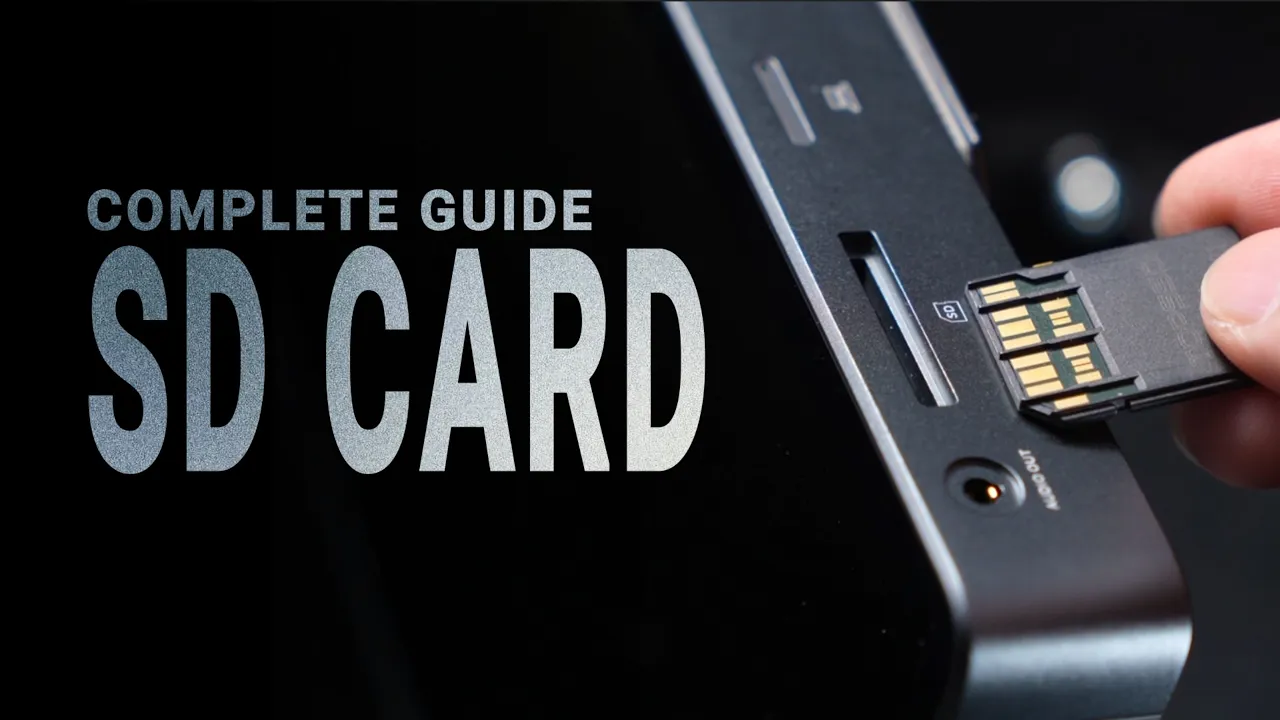
SD cards are essential for many of our users when it comes to live streaming or recording. Today, I’ll walk you through how to use SD cards with your YoloBox and some key tips to keep in mind.
Choosing an SD Card
YoloBox supports most standard SD cards from major brands but does not support micro SD cards. According to user feedback, brands like SanDisk and Lexar work very well.
The format of the SD card is especially important. YoloBox supports FAT32, exFAT, and NTFS. If you’re unsure of your SD card’s format, you can check it on your computer.
Simply right-click the SD card drive, select Properties or Get Info, and you’ll see the format. If it’s not supported, you can format it: on Windows, right-click and select “Format”; on Mac, open Disk Utility, select the SD card, and click “Erase.”
Keep in mind that these formats have different maximum capacities. Beyond format, you should also know which media formats YoloBox supports. Supported image formats include JPEG, PNG, and GIF. Supported video formats include MP4, MKV, MOV, MPG, and VOB. Important note: MOV with an alpha channel is not supported. And audio formats supported are MP3 and AAC. YoloBox does not support AVI or WMV files.
SD Card Not Recognized
What if your SD card is compatible but YoloBox still doesn’t recognize it? Follow these steps:
First, exit the Live Event, remove the SD card, and reinsert it. Then go back into the Live Event to see if it’s recognized.
If it still doesn’t show up, try formatting the SD card on your computer. Then restart your YoloBox, insert the SD card, and check again.
If it still doesn’t work, go to Account & Settings and perform a Factory Reset. If after this your SD card still isn’t recognized, please contact us directly via our support email.
Recording to SD Card
When recording to an SD card, the most important thing is to ensure your SD card has a read/write speed above 30 MB/s. Anything slower may result in dropped frames or audio-video sync issues.
Also, when you press the record button, you’ll see the remaining storage on your SD card—make sure there’s enough space to capture your content.
The most important thing is to wait for the file to finish writing after recording. If you pull the card out too quickly, that information might not be written yet, and the file could end up unreadable on your computer.
If you’re recording professional-level content, such as long 4K60 ISO recordings with multiple video sources, SD cards may not meet the read/write speed requirements. In those cases, we recommend recording to an SSD instead.
2,233 total views, 11 views today