
New In-Dashboard Message Feature Explained
To provide faster, clearer, and more efficient support, YoloCast has introduced a new built-in messaging feature directly inside the dashboard.
Now, when you encounter an issue while using YoloCast, you can submit your question, upload screenshots or videos, and communicate directly with our support team — all without leaving the dashboard.
This article will walk you through how to use the new Message feature step by step.
Where to Find the Message Feature in YoloCast
After logging in to your YoloCast dashboard, go to your Broadcasts page:
👉 https://dashboard.yololiv.com/broadcasts?status=1
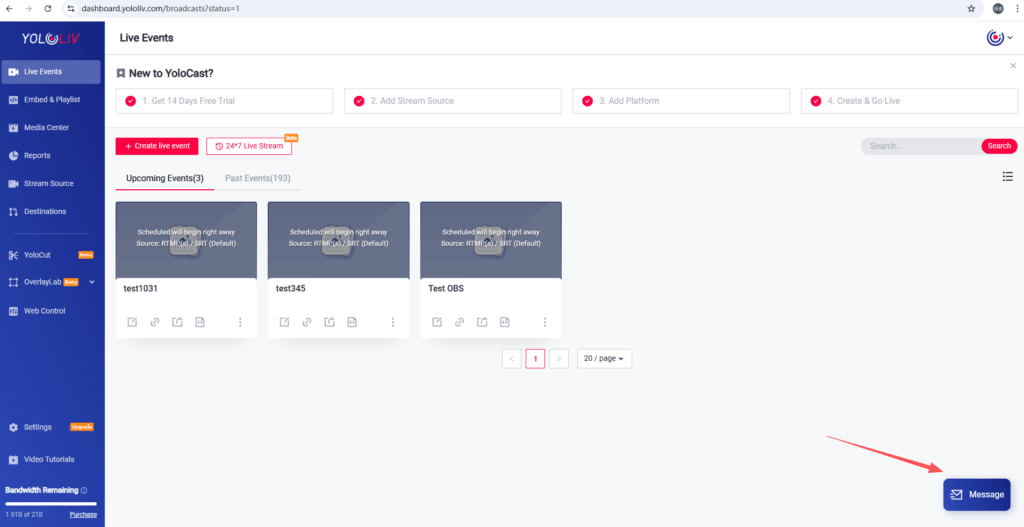
On the dashboard screen, you’ll notice a blue Message icon located at the bottom-right corner of the page.
This Message window is designed specifically for YoloCast-related questions and issues.
Step-by-Step: How to Create a New Message
Step 1: Open the Message Window
Click the blue Message box in the bottom-right corner of the dashboard.
Step 2: Create a New Message
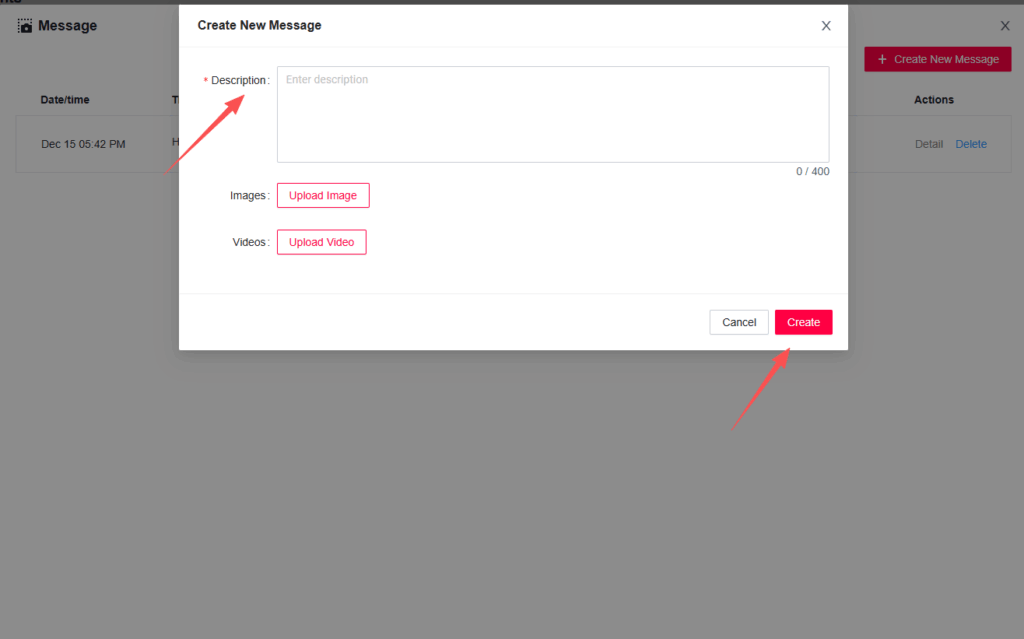
Inside the Message window, click “Create New Message” to start a new support request.
Step 3: Describe Your YoloCast Issue
In the message editor, clearly describe the issue you are experiencing with YoloCast, such as:
- Streaming configuration questions
- Multi-platform streaming issues
- Overlay, scheduling, or dashboard-related problems
📝 Important:
This Message feature is only for YoloCast-related issues.
If your question is related to YoloBox hardware, please contact our support team directly at:
📩 contact@yololiv.com
Upload Images or Videos for Faster Support
To help our support team understand your issue more accurately, you can upload images or videos directly in your message.
This is especially useful if you want to show:
- Error messages
- Dashboard settings
- Unexpected streaming behavior
The more details you provide, the faster and more accurately we can assist you.
Waiting for a Response & Refreshing Messages
Once your message is submitted:
- Our professional YoloCast support team will review your request
- You can return to the Message window at any time
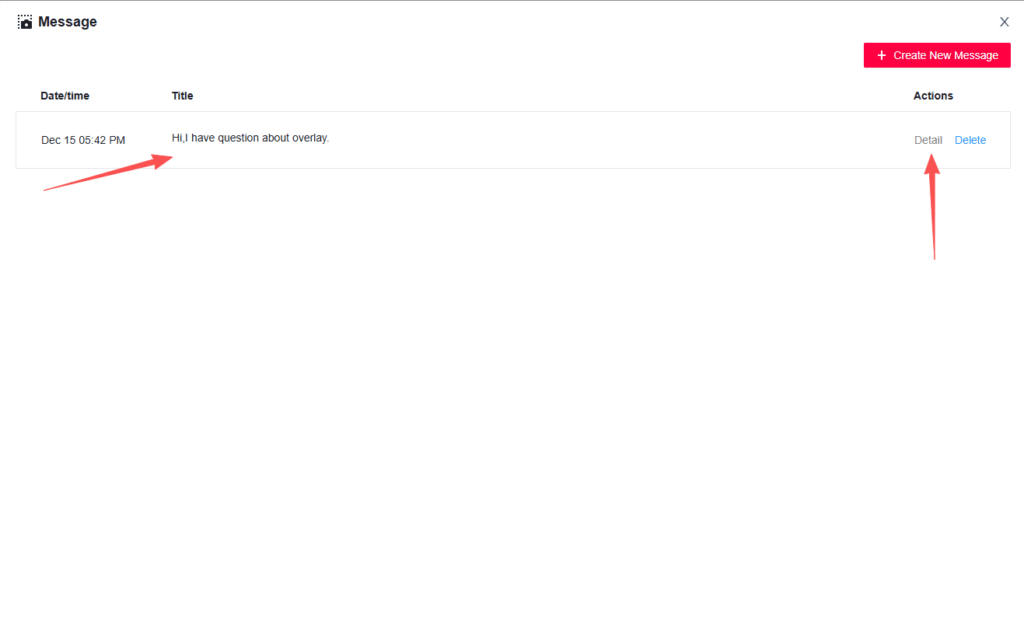
- Click “Refresh” to check for new replies and updates
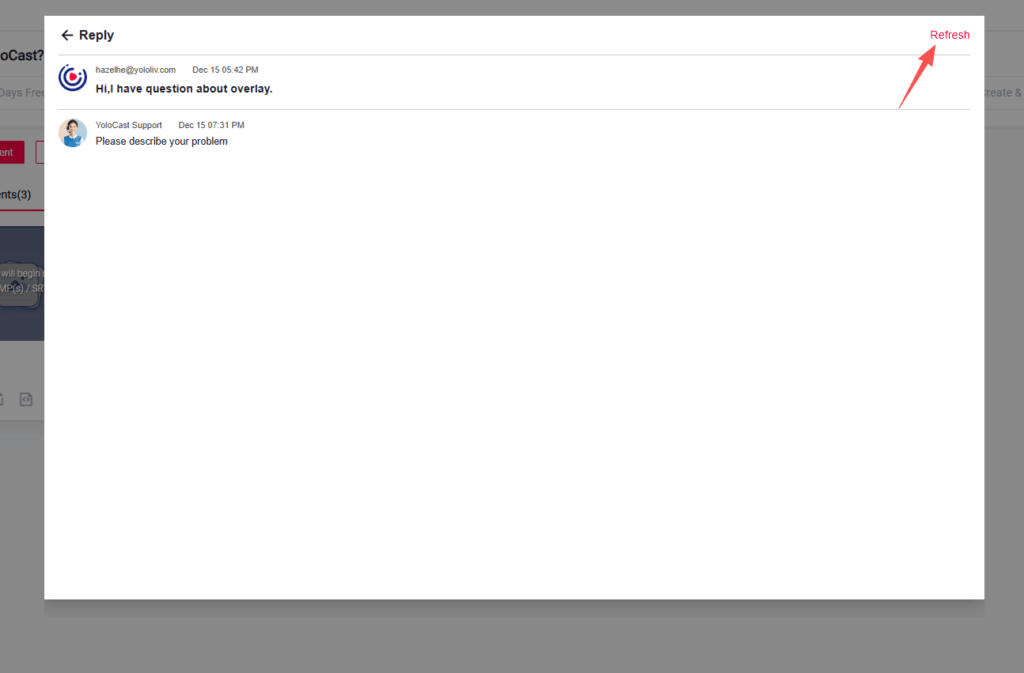
All communication stays neatly organized within the dashboard, so you never lose track of the conversation.
Why This Matters
The new in-dashboard Message feature helps you:
- Get faster support without switching platforms
- Communicate issues more clearly with visual uploads
- Keep all YoloCast-related support conversations in one place
Our goal is to make your live streaming experience smoother, more reliable, and better supported — every step of the way.
Need Help with YoloCast? Start in the Dashboard
If you’re using YoloCast and run into any questions, simply head to your dashboard and send us a message.
We’re here to help — right where you stream.
6,588 total views, 15 views today

Betty,As a Customer Success Specialist at YoloLiv, she is passionate about helping users understand YoloCast’s features and resolve day-to-day usage challenges. In addition to hands-on support, she creates practical articles that share tips, troubleshooting guidance, and best practices to help users get more value from YoloCast.
