
Gaming streamers have a specific set of demands from a webcam that most reviews don’t address. The camera needs to run for hours without issues. It needs to look good in a room lit mostly by monitors. It needs to stay sharp when you’re reacting, leaning in, or turning away from the camera mid-game. And it absolutely cannot distract you during a session.
The YoloCam S3 checks every one of these boxes. Here’s why it’s become the go-to webcam upgrade for serious gaming streamers.
What Gaming Streamers Actually Need From a Webcam
Gaming stream setups have unique characteristics that separate them from podcast setups or corporate video calls.
Low ambient light. Most gaming rooms are intentionally dim. RGB lighting, monitor glow, and dark ambient conditions are the norm — not an exception. A webcam that struggles in low light will look terrible in a gaming setup.
Long session reliability. A three-hour Twitch stream is a normal session. A ten-hour marathon isn’t unusual. The webcam needs to stay consistent — same exposure, same focus, same color — from hour one to hour ten.
Active movement. Gaming reactions are physical. You lean forward during a tense moment. You spin around to react to a clip. You turn to look at a second monitor. A webcam that hunts for focus during these movements creates visible distractions for viewers.
Heat management. Gaming setups generate heat. A webcam that throttles performance under sustained use — or one that softens the image as it warms up — is a real problem for marathon streamers.
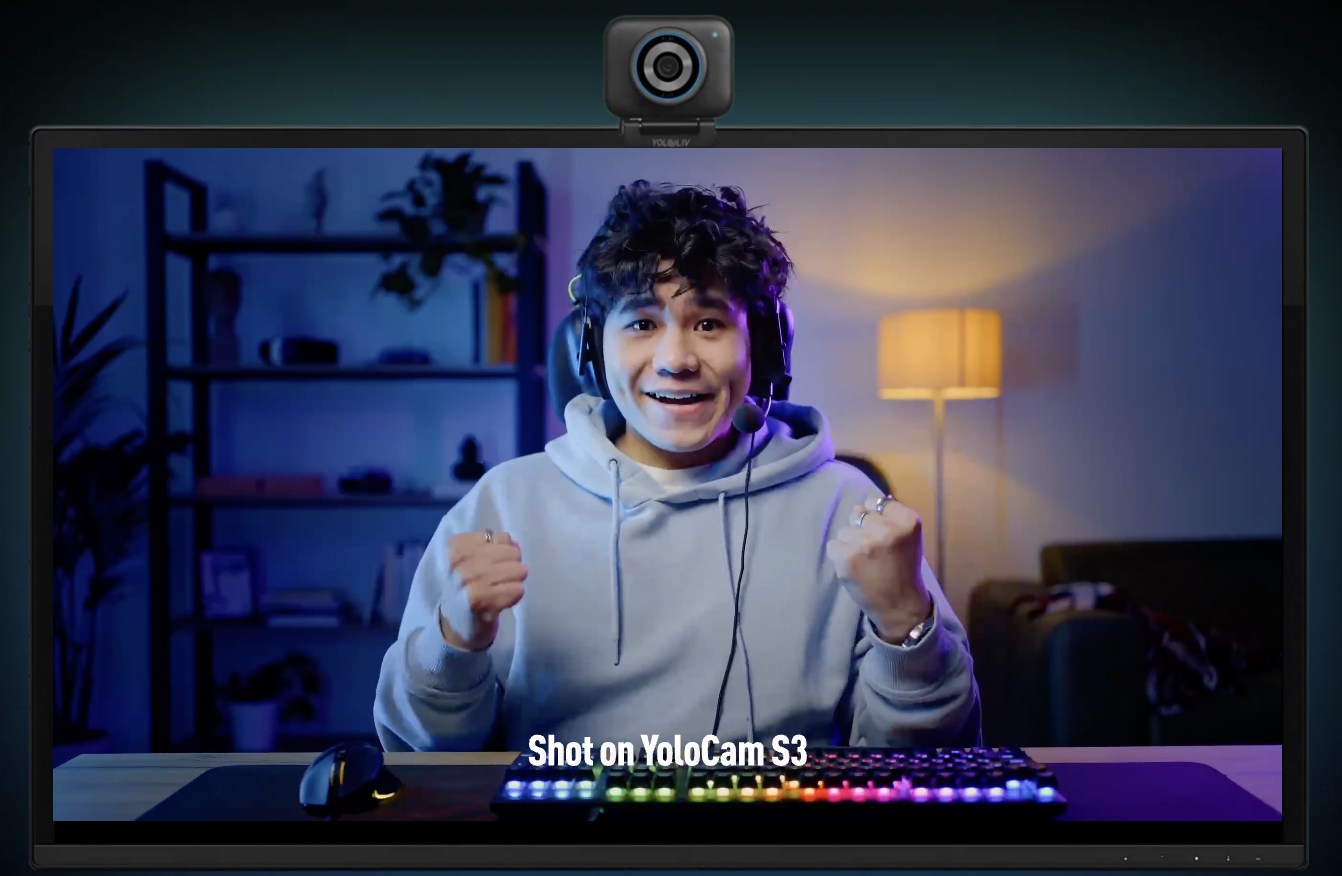
YoloCam S3 was built with all of these conditions in mind.
Low-Light Performance in Gaming Rooms
This is where the S3 separates itself most clearly from standard gaming webcams.
Most gaming rooms are lit by monitors and RGB. Overhead lights are often off or dimmed. Desk lamps might provide some fill. It’s not pitch black — but it’s far from the “good lighting” that most webcams are optimized for.
Small-sensor webcams in these conditions produce grainy, dim, color-shifting footage. The image that started clean during a daytime stream looks visibly degraded by 10pm with the lights off.
The S3’s 1/1.3-inch sensor and f/1.85 aperture collect significantly more light than standard webcam hardware. In a typical gaming room environment — monitor-lit, dim overhead — the S3 produces a clean, well-exposed image without noise. Furthermore, its PDAF autofocus remains stable and confident in low contrast, dim conditions where contrast-detection cameras start hunting.
For gaming streamers specifically, this is the single most important advantage the S3 offers. Your viewers see you clearly at 2am in the same conditions where other cameras are struggling.
Long Session Reliability
Gaming streamers can’t babysit their camera during a stream. The camera needs to run in the background and handle everything automatically.
The S3 is built from full aluminum — not plastic. Aluminum acts as a passive heat sink. During extended sessions, the S3 stays cool and maintains consistent performance. Plastic-bodied cameras can show subtle thermal effects over long sessions: slightly shifted colors, reduced autofocus confidence, or frame rate inconsistencies as the processor throttles to manage heat.
Additionally, settings save directly to the S3’s internal memory via the Compose app. Once you dial in your exposure, white balance, and autofocus settings for your gaming room, they’re locked. Next time you start a stream, everything is exactly where you left it. There’s no need to reconfigure before going live.
PDAF Autofocus for Gaming Reactions
Gaming streamers move. That’s part of what makes gaming content entertaining — the physical reactions, the lean-ins during tense moments, the spin to face chat.
Most webcams handle these moments poorly. Contrast-detection autofocus loses confidence during fast movement and hunts for the new focus point. The result is a brief blurring that viewers notice, even if they don’t consciously register what caused it.
The S3’s PDAF calculates the correct focus distance directly from the sensor data. It doesn’t search — it moves to the right position immediately. When you lean in during a clutch moment, the camera stays sharp. When you spin to read chat, it finds you again instantly.
Moreover, face-priority AF mode in Compose keeps the camera focused on your face specifically. Even when your hands enter the frame, or when you hold up a peripheral or drink, the camera prioritizes keeping your face sharp.
Setting Up the S3 for a Gaming Stream
Setting up the S3 for gaming is straightforward. Here’s the recommended configuration.
In Compose:
– Resolution: 1080p @ 60fps (matches gaming stream frame rates)
– Autofocus: Face Priority AF
– Exposure: Set manually for your gaming room lighting. Lock it so it doesn’t shift during the stream.
– White balance: Lock manually to a neutral reference. Monitor glow shifts color temperature throughout a session — manual white balance prevents this drift.
– Color profile: Standard or Vivid depending on your aesthetic. Vivid works well for gaming setups with RGB lighting.
In OBS:
– Add the S3 as a Video Capture Device
– Set resolution to 1080p and FPS to 60
– Position as a facecam overlay — typically bottom-left or bottom-right corner at 20-25% of screen width
– Use a chroma key or shape mask if you want a circular or rounded facecam frame
Positioning: Mount the S3 at monitor top, slightly above eye level. For gaming setups with multiple monitors, mount it on the monitor you look at most often during streams.
How the S3 Compares to Common Gaming Webcam Choices
vs. Elgato Facecam / Facecam 4K: The Facecam is popular with gaming streamers for its clean 1080p output and Elgato ecosystem integration. However, it has no autofocus. For gaming content where you move, the fixed focus means frequent soft footage. The S3’s PDAF and larger sensor make it the stronger choice for most setups.
vs. Logitech C920: A significant portion of Twitch’s streamer base still uses a C920. It’s reliable. However, in low-light gaming rooms, the C920 shows its age — noisy, flat, and hunting for focus. The S3 is a major upgrade in all three areas.
vs. Razer Kiyo Pro Ultra: The Kiyo Pro Ultra was the previous top recommendation for gaming streamers. It has a large sensor and good low-light performance. However, it uses contrast-detection autofocus and has been discontinued. The S3 matches its image quality, beats it on autofocus, and is actively supported at a lower price.
vs. Insta360 Link 2: The Link 2’s gimbal tracking appeals to streamers who move a lot. For gaming streamers who sit at a desk, the gimbal is largely unnecessary. The S3’s image quality and PDAF give it the edge for fixed-position gaming setups. Read our S3 vs Insta360 Link 2 comparison for the full breakdown.
The YoloLiv Compose App for Gaming Streamers
Gaming streamers often run OBS alongside multiple game captures, chat overlays, and alert systems. Adding another app sounds like overhead. In practice, Compose is lightweight and runs quietly in the background.
It launches automatically when the S3 connects and applies your saved settings without requiring any input. During a stream, you won’t interact with it. After a stream, if you want to adjust something, it takes seconds.
Compose also integrates cleanly with OBS. There are no conflicts with common streaming software. Furthermore, since settings save to the camera, you can switch computers — streaming PC to laptop, home to LAN event — without reconfiguring anything.
Bottom Line
The YoloCam S3 solves the three core problems that gaming streamers face with webcams: it stays sharp during active reactions, looks clean in a low-light gaming room, and runs reliably across long sessions without demanding attention.
For gaming streamers upgrading from a C920, Facecam, or aging Brio, the S3 is the most direct path to a noticeably better facecam. At $199, it costs less than most gaming peripherals and lasts significantly longer.
The YoloCam S3 is available at $199 from the YoloLiv official store, Amazon, and B&H. For the complete OBS setup guide, see How to Set Up YoloCam S3 with OBS.
63 total views, 63 views today

Meredith, the Marketing Manager at YoloLiv. After getting her bachelor’s degree, she explores her whole passion for YoloBox and Pro. Also, she contributed blog posts on how to enhance live streaming experiences, how to get started with live streaming, and many more.
