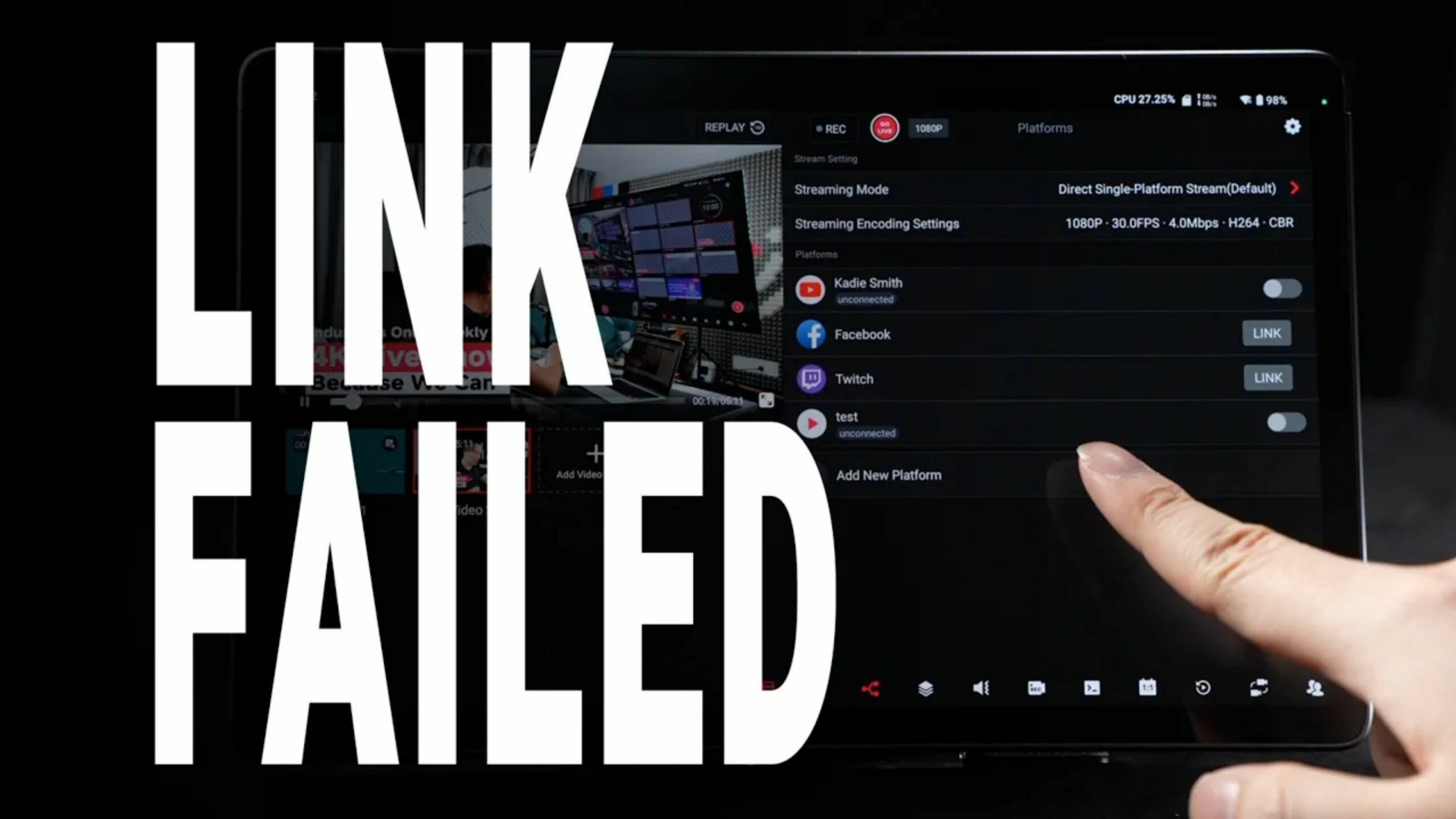
Today I’d like to talk about a question we receive all the time: I can’t add or stream to my Facebook / YouTube account.
Live streaming platforms constantly update their policies regarding third-party streaming hardware and software. Of course, policies differ from platform to platform.
Even though these errors look very different on the surface, they usually share the same solution: adding or rebinding your accounts through YoloCast.
Common Problem Scenarios
Let’s take a look at some common problem scenarios.
The most common issue is this: when you try to add a Facebook account on the YoloBox, the browser page gets stuck and cannot complete the login. The message “You previously logged in to the app…” appears briefly and then disappears, preventing confirmation.
Another case is that, because Chrome doesn’t “retain” the login during the loading process, users cannot stream to Facebook.
Sometimes, even if the accounts have been successfully linked and the live stream has been running smoothly for a while, suddenly one day issues like chaotic scene switching may occur during the broadcast.
Other platform-related errors may also occur, but in general, they are all tied to changes in the streaming platforms’ policies regarding third-party tools. That’s why we recommend adding or rebinding your accounts through our cloud-based platform, YoloCast.
Solution
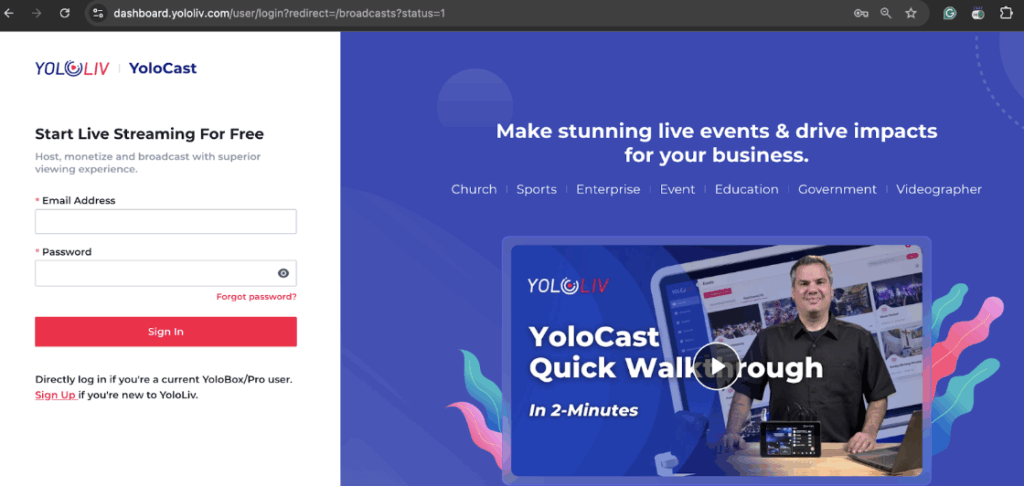
First, go to the YoloCast login page and sign in with your YoloLiv account.
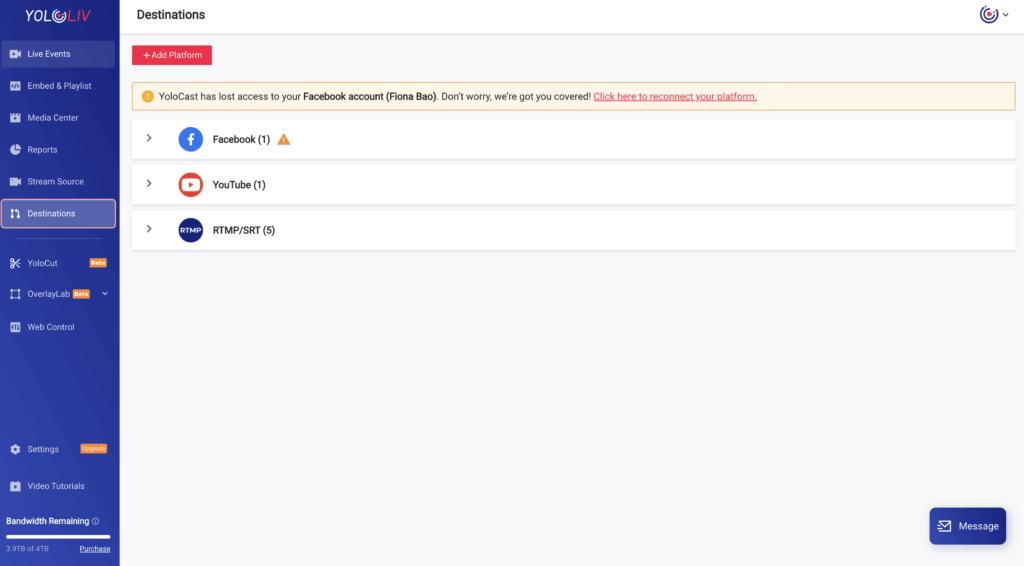
Once you’re in the YoloCast dashboard, look at the menu on the left and find Destinations.
Click Add Platform, and you’ll see options like Facebook, YouTube, Twitch, and RTMP / SRT. Except for HLS, these are exactly the same platforms you can add on the YoloBox.
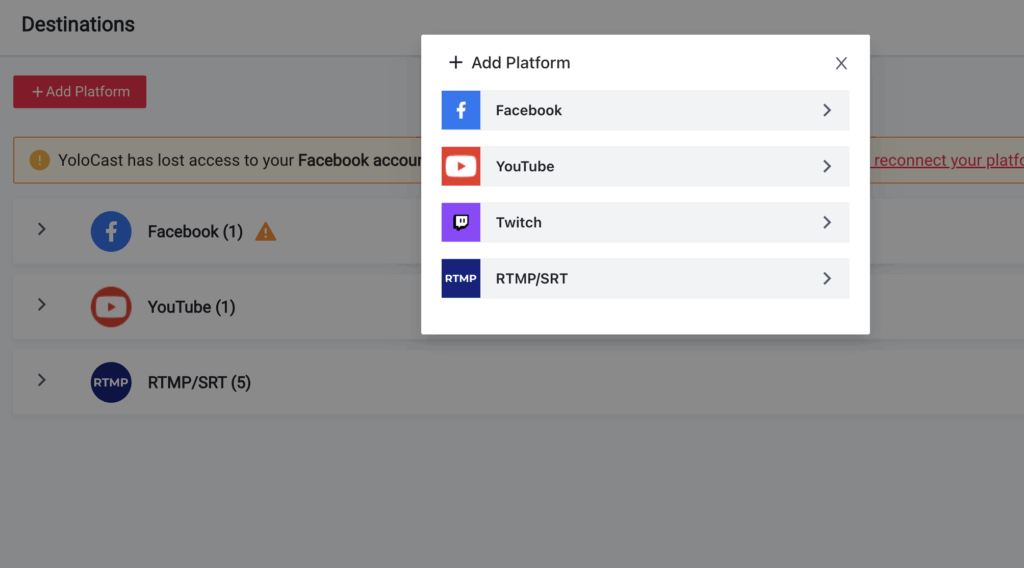
Choose the platform you want, agree to the terms and conditions, and your account will be successfully linked. Once that’s done in YoloCast, it will automatically sync to your YoloBox. When you go back to the YoloBox, you’ll be able to see those accounts listed under Platforms.
If you ever need to delete an account on the YoloBox, just swipe left on the account entry. A red “Delete” button will appear on the right—tap it, and the account will be removed.
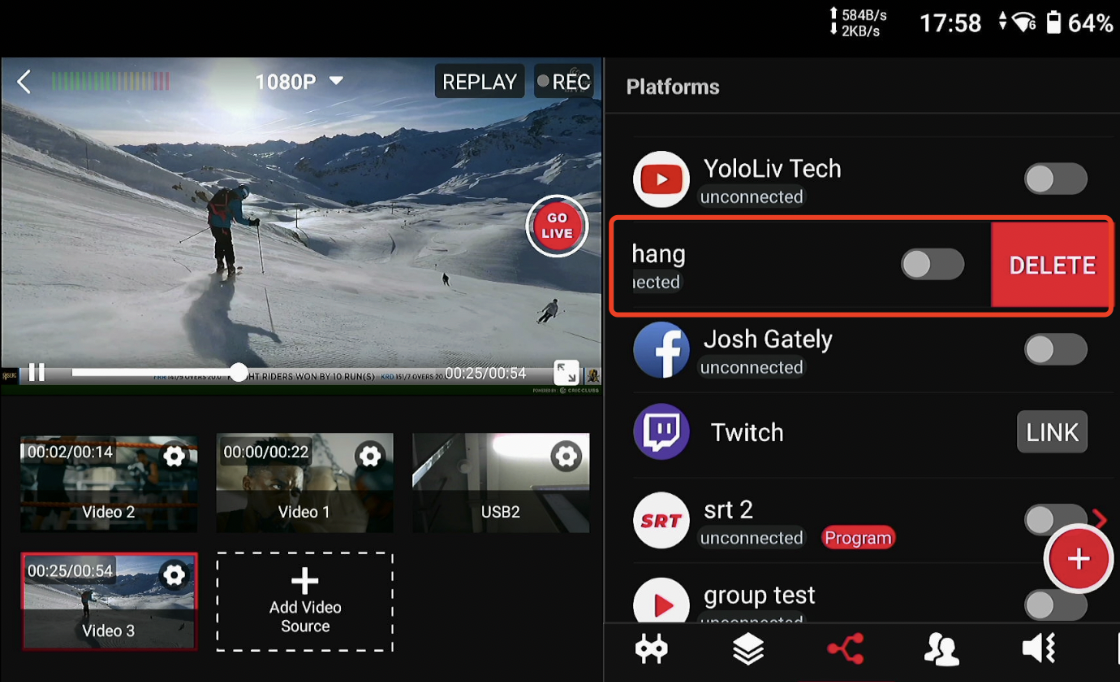
Of course, you can also link your account directly on the YoloBox.
The linking process is exactly the same as on YoloCast. Simply tap the red plus button here to add a platform, then choose the account you want to link and follow the platform’s prompts to agree to the terms and conditions to complete the binding.
However, as I mentioned earlier, I still recommend linking your account through YoloCast, because when it comes to streaming stability alone, the software-based YoloCast is generally more reliable than the hardware-based YoloBox.
“Retry” Error
If you open a Live Event and the Platform area shows nothing but “Retry,” here’s what to do: don’t delete that event. Keep it in your Live Event list, and simply create a brand-new Live Event. In most cases, that alone solves the issue. If it still doesn’t work, try performing one or two factory resets and test again.
2,276 total views, 23 views today