
Background blur — the soft, out-of-focus look that separates your subject from the environment — was once exclusive to DSLR and mirrorless cameras with large sensors and fast lenses. Today, the YoloCam S3 brings a genuine version of this effect to webcam video.
This guide explains the physics behind background blur, why the S3 produces it naturally, and how to maximize the effect in your streaming or video call setup.
What Creates Background Blur?
Background blur, or bokeh, is a product of depth of field — the range of distance that appears acceptably sharp in a photo or video. When depth of field is shallow, only a narrow band of distance is in focus. Anything in front of or behind that band appears progressively blurred.
Three factors control depth of field:
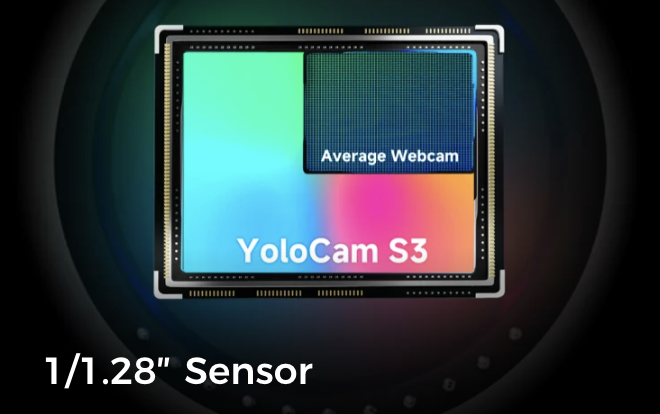
Sensor size. Larger sensors produce shallower depth of field at equivalent settings. This is the most fundamental factor. A full-frame camera blurs backgrounds more aggressively than a crop-sensor camera. A 1/1.3-inch sensor blurs more than a 1/2.5-inch sensor.
Distance relationships. The closer you are to the camera relative to your background, the more blurred the background appears. A subject 1 meter from the camera with a background 3 meters behind them shows more blur than the same subject 3 meters from the camera with the background 5 meters behind.
Aperture. A wider aperture (lower f-number) produces shallower depth of field. Camera lenses with f/1.4 or f/1.8 apertures create more background blur than lenses at f/4 or f/8.
The S3 leverages all three of these factors to produce background blur that is rare in webcam-category products.
Why the YoloCam S3 Produces Natural Background Blur
The Sensor Size Advantage
YoloCam S3’s 1/1.3-inch sensor is dramatically larger than sensors used in most webcams. Standard webcam sensors measure 1/2.5 inch or smaller. The S3’s sensor has more than double the area.
This size difference directly produces shallower depth of field. Under the same conditions, the S3 naturally blurs backgrounds that appear sharp on a smaller-sensor camera. It is not a software effect — it is a physical consequence of the sensor size.
Consequently, you get genuine background separation without any processing. The effect is more natural and more consistent than software-generated blur, which tends to create artifacts around hair, glasses, and fine details.
Fast Aperture Lens
The S3 is paired with a fast aperture lens optimized for its sensor. Combined with the large sensor, this creates maximum background separation for a webcam-class product. The result is a depth of field characteristic that previously required a dedicated camera setup.
Phase-Detection Autofocus Maintains the Effect
Background blur is only effective when you — the subject — are sharp. If the camera struggles to maintain focus on your face while keeping the background soft, the effect looks inconsistent and distracting.
The S3’s phase-detection autofocus locks on your face immediately and holds focus precisely, even during movement. This means you always appear sharp against a soft background, creating the consistent cinematic look that makes content look polished. For more on how PDAF enables this, see our autofocus deep dive.
How to Maximize Background Blur with the YoloCam S3
Distance: The Most Powerful Control
The most effective way to increase background blur is to increase the distance between yourself and your background.
Example: Sit 1–1.5 meters from the camera. Position your background — a wall, bookshelf, or backdrop — at least 2–3 meters behind you. This large subject-to-background distance maximizes the blur effect the S3 can produce.
Compare this to sitting close to a wall. When your background is immediately behind you, even a shallow depth of field struggles to blur it significantly.
If your room is small, push your chair as far forward as possible and clear space behind your background surface. Even an extra 50cm of separation makes a visible difference.
Camera Distance: Closer Is Shallower
Positioning the S3 closer to your face creates a shallower depth of field. Try moving the camera to 50–70cm from your face rather than 80–100cm. The closer framing increases background blur noticeably.
However, balance this with your framing needs. A very tight close-up may crop out gestures and body language that contribute to your on-screen presence.
Background Choice Matters
Not all backgrounds respond equally to blur. Some backgrounds blur more attractively than others.
Best for blur: Bookshelves with varied objects, plants with fine leaf detail, walls with subtle texture or pattern, fabric backdrops with soft weave patterns. These backgrounds contain detail that renders as attractive, soft bokeh when blurred.
Avoid for blur: Plain flat-color walls — these already look soft and do not benefit visibly from blur. Very bright backgrounds — these can appear as harsh blown-out areas even when blurred.
A bookshelf 2–3 meters behind you blurs into a soft, warm mass of color and light that reads as professional and inviting. This is one of the most popular streaming backgrounds for exactly this reason.
Lighting and the Blur Effect
Proper lighting enhances the background blur effect. When you are well-lit relative to your background, your sharp foreground stands out more clearly against the softer, dimmer background.
A bright key light on your face combined with lower ambient light behind you increases the apparent contrast between sharp foreground and blurred background. For complete lighting recommendations, see our webcam lighting guide.
Software Blur vs Natural Sensor Blur
Many platforms offer software-based background blur: Zoom’s blur feature, Teams’ background effects, OBS blur filters. These use AI to detect and blur the background in real time.
Software blur advantages: Works regardless of camera sensor size; available on any camera.
Software blur disadvantages: Creates artifacts at edges — hair, glasses, and fine details often appear incorrectly blurred or semi-transparent. The effect can flicker or pulse during movement. It looks artificial because it is artificial.
Natural sensor blur advantages: Consistent, physically accurate blur that renders correctly around all edges. No artifacts. No processing overhead. No flickering.
The S3 produces natural sensor blur. This means you can use the camera without any software blur effect and still achieve significant background separation. The result looks cleaner and more professional than any software blur — especially around hair and glasses where software blur consistently struggles.
That said, you can combine both. Use the S3’s natural sensor blur as a base, then add a subtle software blur layer in OBS or your platform of choice. The combination produces maximum background separation with minimal artifacts.
Real-World Results: What to Expect
YoloCam S3 produces genuine background blur that is visible and attractive in streaming and video call contexts. However, it is worth setting accurate expectations.
The S3 is a webcam, not a full-frame mirrorless camera with a 50mm f/1.2 lens. The background blur is real and significant — noticeably more than any small-sensor webcam — but it does not match the extreme bokeh of a cinema camera setup.
For streamers and video call users, the S3’s natural depth of field is more than sufficient. It creates a polished, professional look that elevates your image well beyond standard webcam quality. For a comparison of webcam versus DSLR depth of field, see our webcam vs DSLR guide.
Summary: Key Setup Points
To maximize background blur with the YoloCam S3, apply these steps in order of impact:
Increase the distance between yourself and your background — aim for 2–3 meters of separation. Position the S3 50–70cm from your face for a closer, shallower framing. Choose a background with visual texture that blurs attractively. Light your face brightly relative to your background to increase foreground-background contrast. Use natural sensor blur as your foundation before adding any software effects.
These adjustments take minutes to implement. The result is a noticeably more cinematic, professional video image that sets your streams and video calls apart from the typical flat, sharp-background webcam look.
43 total views, 43 views today

Meredith, the Marketing Manager at YoloLiv. After getting her bachelor’s degree, she explores her whole passion for YoloBox and Pro. Also, she contributed blog posts on how to enhance live streaming experiences, how to get started with live streaming, and many more.
