
Short-form vertical content has taken over. TikTok Live, Instagram Live, YouTube Shorts — the platforms that drive the most creator growth today are built around a 9:16 vertical frame. However, most webcams are designed for the traditional 16:9 horizontal format. Using them for vertical content means cropping, pillarboxing, or awkward workarounds.
The YoloCam S3 supports native vertical mode. It rotates its output to 9:16, delivers a proper portrait-orientation image, and integrates cleanly into the most popular vertical streaming workflows. Here’s how to make the most of it.
Why Vertical Mode Matters for Creators
Before getting into the S3 specifically, it’s worth understanding why vertical format is increasingly important.
TikTok, Instagram, and YouTube Shorts are mobile-first platforms. Their audiences consume content full-screen on smartphones. Consequently, content shot in 9:16 fills the screen and looks native. Content shot in 16:9 appears with black bars on the sides — or gets aggressively cropped — and immediately looks less professional.
For TikTok Live in particular, vertical content performs better in the algorithm. Furthermore, viewers drop off faster when the frame doesn’t fill their screen. In short, if you’re building an audience on these platforms, shooting vertically is an advantage you shouldn’t ignore.
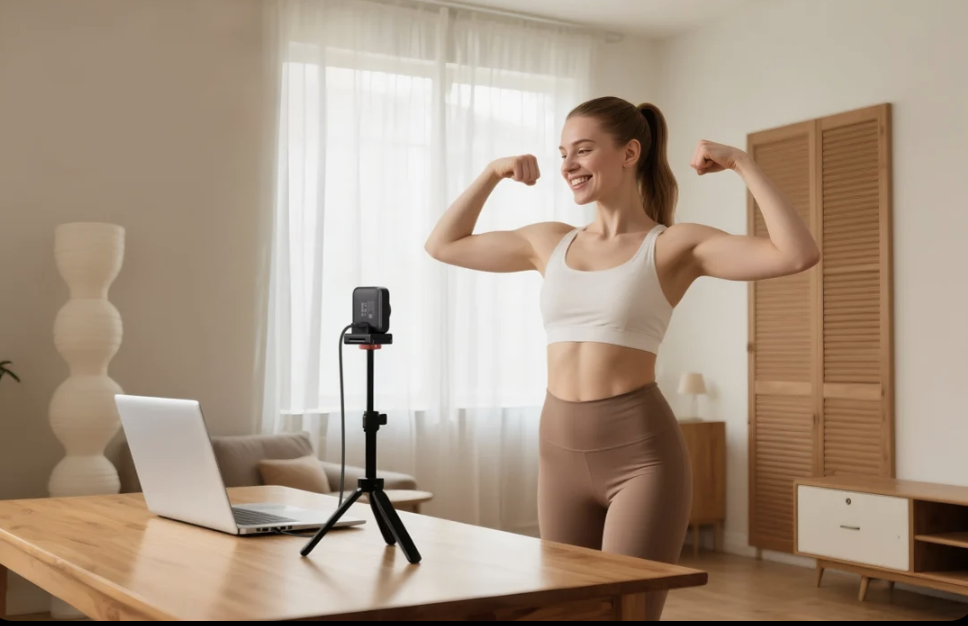
How the YoloCam S3 Vertical Mode Works
The S3’s vertical mode is available directly in the YoloLiv Compose app. Setting it up takes about thirty seconds.
- Open the Compose app with the S3 connected
- Go to Camera Settings → Orientation
- Select Portrait (9:16)
- The preview rotates to vertical orientation
The camera output is now a proper 9:16 portrait image — not a horizontal image with black bars, but a natively rotated portrait stream. This is what you want for TikTok Live and Instagram Live.
Additionally, settings save to the camera itself. Next time you plug in the S3, it remembers the orientation. There’s no need to reconfigure in the app each session.
Setting Up the S3 for TikTok Live
TikTok Live on desktop requires a capture setup. Here’s the recommended workflow.
Using OBS Studio:
- Open OBS. Set your canvas to 1080×1920 (vertical canvas) in Settings → Video
- Add the S3 as a Video Capture Device source
- In the source properties, the S3 will appear as a vertical 9:16 image if you’ve set Portrait mode in Compose
- Scale the source to fill the vertical canvas
- Connect OBS to TikTok Live using the RTMP stream key from your TikTok creator dashboard
The result is a clean, full-screen vertical stream that looks native on mobile viewers’ screens.
Using Streamlabs or StreamYard:
Both platforms support vertical canvas configurations. Set your scene to 1080×1920, add the S3 as your camera source, and proceed as normal. The S3’s portrait output fills the frame correctly.
Image Quality in Vertical Mode: Why the S3 Stands Out
Switching to vertical mode doesn’t reduce the S3’s image quality. This matters more than it might seem.
Many webcams that offer rotation features do so through software processing — they digitally rotate a 16:9 image, cropping the sides and losing resolution in the process. The result is a softer, lower-resolution vertical image.
The S3’s large 1/1.3-inch sensor has enough resolution that even in cropped vertical mode, the output is sharp and detailed. Furthermore, the f/1.85 aperture continues to produce real background separation in portrait orientation. Your face is sharp. The background is soft. The image looks intentional.
For TikTok creators, this means the production quality that distinguishes professional creators from casual ones is accessible from a $199 webcam — without a phone, a gimbal rig, or a mirrorless camera setup.
PDAF Autofocus in Vertical Streaming
One advantage the S3 has over phone-based vertical streaming is its PDAF autofocus behavior in portrait mode.
When you use a phone for TikTok Live, the camera is essentially fixed. You need to hold it or mount it. The autofocus works well, but there’s no dedicated face-tracking mode optimized for extended live sessions.
The S3 in face-priority AF mode locks onto your face and stays there throughout the stream. Moreover, it handles movement — leaning forward, turning slightly, reaching for something — without hunting or losing focus. For long TikTok Live sessions where you’re constantly engaging with the camera, this consistency matters.
Lighting Recommendations for Vertical TikTok Streaming
Vertical framing changes how you think about lighting. In a 16:9 horizontal frame, most of the background is visible. In a 9:16 vertical frame, the background is mostly above and below you. As a result, lighting the subject becomes even more important than lighting the environment.
Key light placement: Position a key light directly in front of you, slightly above eye level. In a vertical frame, this lights your face evenly without the background competing for attention.
The S3 advantage in low light: TikTok creators often go live in the evening or in casual home environments. The S3’s large sensor means you can look good with minimal lighting — a desk lamp or a single LED panel is often enough. You don’t need a ring light or softbox to stream clean vertical video on the S3.
Ring lights and vertical content: Ring lights work well for vertical content. They create even, flattering illumination and the catchlights in eyes look natural on camera. If you already have a ring light, it pairs well with the S3 in portrait mode.
The S3 vs. Using Your Phone for TikTok Live
Many creators default to their phone for TikTok Live. It’s convenient, it’s already in portrait orientation, and modern phone cameras are excellent. So why use the S3 instead?
Consistency. A desk-mounted S3 is fixed and stable. It doesn’t move, doesn’t need to be held, and doesn’t interfere with your phone’s other functions. You can interact with your stream, use your phone for chat management, and keep the camera stable simultaneously.
Image quality in non-ideal conditions. Phone cameras are exceptional in good light. However, in dim home environments, the S3’s larger sensor produces cleaner results than most phone cameras. Furthermore, the Compose app gives you controls — manual exposure, white balance lock, color grading — that phone cameras don’t offer during a live stream.
Long sessions. Phone cameras generate significant heat during extended live streams. Battery drain is real. Using the S3 on your computer frees your phone entirely and eliminates heat and battery concerns for multi-hour TikTok Live sessions.
That said, if you have a recent iPhone or flagship Android, your phone camera is genuinely excellent. The S3 is the better tool for fixed desktop setups. Your phone is better for mobile, spontaneous, or on-location content.
Other Vertical Streaming Platforms
The S3’s vertical mode works with any platform that accepts a camera input or RTMP stream.
Instagram Live: Use OBS with a vertical canvas and push via RTMP or use a mobile hotspot-to-desktop workflow. The S3’s portrait output works cleanly.
YouTube Shorts (live): Set OBS to a 1080×1920 canvas and stream vertically. YouTube supports vertical live streams that display correctly on mobile.
Twitch: Twitch doesn’t have native vertical support, but some creators use a vertical frame within a horizontal canvas with graphics on either side. The S3’s portrait mode works here too.
Bottom Line
The YoloCam S3 is one of the few webcams that genuinely supports vertical content creation without compromise. Its portrait mode is clean, its image quality holds up in the cropped vertical frame, and its PDAF autofocus keeps you sharp through long live sessions.
For TikTok creators who stream from a desk and want professional-quality vertical video without a phone gimbal rig, the S3 is the most direct solution available at this price.
The YoloCam S3 is available at $199 from the YoloLiv official store, Amazon, and B&H. For OBS setup instructions, see our complete OBS setup guide for the YoloCam S3.
643 total views, 31 views today

Meredith, the Marketing Manager at YoloLiv. After getting her bachelor’s degree, she explores her whole passion for YoloBox and Pro. Also, she contributed blog posts on how to enhance live streaming experiences, how to get started with live streaming, and many more.
