
Video calls are a permanent part of professional life. Whether you use Zoom for client meetings, Microsoft Teams for internal collaboration, or Google Meet for interviews, your webcam quality shapes how others perceive you.
The YoloCam S3 delivers 4K sharpness and fast autofocus that makes you look polished and confident on every call. However, even a great camera benefits from a proper setup. This guide walks you through the complete Zoom and Teams configuration so you get the best possible image from day one.
What the YoloCam S3 Brings to Video Calls
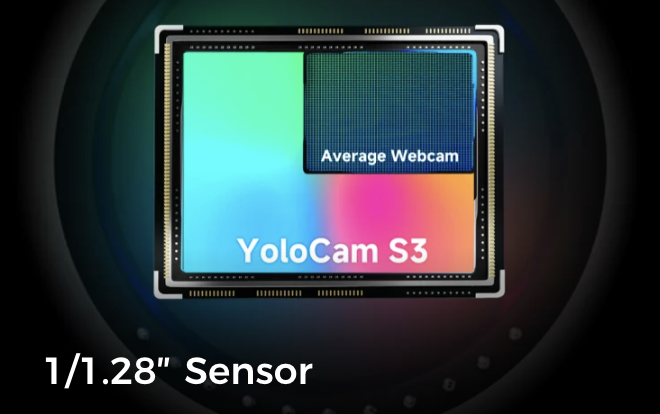
The S3 is not a typical webcam. Its 1/1.3-inch sensor is significantly larger than those found in standard office webcams. Consequently, it handles low-light rooms, mixed lighting, and backlit environments far better than most alternatives.
Additionally, its phase-detection autofocus (PDAF) keeps you sharp even when you lean forward, gesture, or adjust your position. You never appear blurry or out of focus mid-conversation. For a deeper look at how PDAF works, see our autofocus deep dive.
Hardware Setup: Getting Connected
Step 1: Connect via USB-C
The S3 connects via USB-C. Plug it directly into your laptop or desktop. If your computer only has USB-A ports, use a USB-C to USB-A adapter. Make sure you use a USB 3.0 port for full 4K bandwidth.
Step 2: Position the Camera
Camera placement makes a dramatic difference in how you appear on video. Follow these principles:
Eye level is ideal. Mount the S3 on top of your monitor or use a small tripod on your desk. Looking straight into the camera creates natural, confident eye contact with your audience.
Distance matters. Sit approximately 50–80 cm from the camera. Too close and your face fills the frame awkwardly. Too far and you appear small and distant.
Frame yourself in the upper two-thirds of the screen. Leave some space above your head. Do not crop the top of your head in the frame.
Step 3: Lighting
Lighting is the single biggest factor in video quality — even more than the camera itself. Apply these basics:
Face your light source. Position a window or lamp directly in front of you. Light from behind creates a silhouette and makes your face dark.
Avoid overhead lighting alone. Overhead lights cast unflattering shadows under your eyes and chin. Add a front-facing light to counteract this.
Consistent color temperature. Mix warm and cool light sources carefully. If you use a desk lamp, make sure the color temperature matches your window light or the result looks unnatural.
Setting Up the YoloCam S3 in Zoom
Select the Camera
- Open Zoom and click your profile icon → Settings
- Navigate to Video
- Under Camera, select YoloCam S3 from the dropdown menu
- You will immediately see the live preview update to the S3’s feed
Enable HD and 4K
- In the Video settings, check Enable HD
- If you have a Zoom Pro or higher plan, check Enable 4K (2160p) if available in your region
- Click Save
Recommended Video Settings
| Setting | Recommended Value |
|---|---|
| Camera | YoloCam S3 |
| Enable HD | On |
| Mirror my video | Off |
| Touch up my appearance | Off (S3 produces natural skin tones) |
| Adjust for low light | Off (S3 handles this natively) |
Turn off Adjust for low light and Touch up my appearance. The S3’s sensor and image processing handle these automatically. Zoom’s software corrections often degrade the natural quality of the S3’s output.
Setting Up the YoloCam S3 in Microsoft Teams
Select the Camera
- Click your profile picture → Settings
- Navigate to Devices
- Under Camera, select YoloCam S3 from the dropdown
- The live preview confirms the camera is active
Video Quality in Teams
Microsoft Teams automatically selects the best available resolution based on your network connection. With a stable connection and the S3 selected, Teams uses up to 1080p HD video. 4K in Teams requires a Teams Premium plan and a supported configuration.
For most professional use cases, 1080p in Teams is excellent. The S3’s large sensor ensures that 1080p output looks significantly sharper and more detailed than a standard 1080p webcam.
Recommended Device Settings
| Setting | Recommended Value |
|---|---|
| Camera | YoloCam S3 |
| Microphone | Other mics |
| Noise suppression | High |
| Secondary ringer | Your preference |
Before Joining a Call
Use the Make a test call feature in Teams device settings before important meetings. This confirms your camera and microphone are working correctly and lets you review your framing and lighting.
Setting Up in Google Meet
- During a call, click the three-dot menu → Settings
- Under Video, select YoloCam S3
- Under Audio, select other mic sources as your microphone
- Google Meet automatically adjusts to the best available resolution
Google Meet supports up to 1080p for standard accounts and higher resolutions for Google Workspace Enterprise users.
Pro Tips for Outstanding Video Call Quality
Use a Virtual Background Thoughtfully
The S3’s large sensor creates natural depth separation between you and your background. This makes virtual backgrounds work cleanly without the edge-cutting artifacts common with smaller sensors.
However, a real background often looks more professional than a virtual one. A tidy bookshelf, a neutral wall, or a simple plant arrangement conveys authenticity and attention to detail.
Manage Your Background Noise
Check Your Setup Before Every Important Call
Take 60 seconds before each significant meeting to verify your setup. Check that the S3 is selected in the app. Confirm your lighting is on. Test your audio level. These small habits prevent embarrassing technical issues at critical moments.
YoloCam S3 for Hybrid Teams
Many organizations now operate in hybrid mode — some team members in an office, others remote. In this environment, remote participants who appear in sharp 4K stand out positively compared to colleagues using laptop webcams.
The S3 levels the playing field. You look as present and engaged as someone in the room. Moreover, clear video reduces the fatigue of interpreting low-quality feeds over long meetings.
For a broader look at how the S3 improves remote work performance, see our remote work guide.
Final Thoughts
The YoloCam S3 is one of the best investments you can make for professional video calls. Its large sensor, fast autofocus translate directly into a more confident, polished on-screen presence.
Furthermore, setup takes under five minutes on any platform. There are no drivers, no software subscriptions, and no complex configuration. Connect it, select it in your app of choice, and you are ready to make a strong impression on every call.
51 total views, 51 views today

Meredith, the Marketing Manager at YoloLiv. After getting her bachelor’s degree, she explores her whole passion for YoloBox and Pro. Also, she contributed blog posts on how to enhance live streaming experiences, how to get started with live streaming, and many more.
