Today, I’d like to walk you through the SRT Input feature on YoloBox in a more organized and complete way.
SRT Caller & Listener
Let’s talk about SRT Caller and Listener in a way that actually makes sense — no tech jargon, just real talk.
Think of SRT like sending a video “package” from one device to another over the internet. Now, for that to happen, the two devices need to connect — and one has to knock on the other’s door first. That’s where Caller and Listener come in.
The Caller is like the delivery guy — they knock on the door and start the connection. The Listener is the one waiting at home, ready to receive. So far, so good, right?
Now here’s the part that trips people up:
Caller and Listener only decide who starts the connection.
They do not decide who’s actually sending the video.
Let’s say you’re using a YoloBox and trying to bring in a feed from your computer using OBS or vMix. If you set YoloBox to Listener and your computer to Caller, that means your computer initiates the connection — and then pushes the video into the YoloBox. That’s the most common setup, and it’s called SRT Push.
But sometimes you’ll notice that OBS is set as the Listener, yet it looks like it’s the one outputting the video. What’s going on there?
That’s because you’ve probably set it to SRT Pull mode.
In that case, even though OBS is the Listener, it’s also the one pulling the video from the other device. It reaches out, grabs the feed, and brings it in. So yeah — it looks like the Listener is “doing the work,” but it’s just following the rules of Pull mode.
So here’s the simple takeaway:
Caller and Listener decide who connects first. Push or Pull decides who sends the video.
Just because you’re the Listener doesn’t mean you’re sitting back doing nothing — in Pull mode, the Listener is the one making the move!
Introduction to SRT Input on YoloBox
Currently, only the YoloBox Ultra and YoloBox Extreme support SRT video input. When you open the video source menu, you’ll see two options: “SRT” and “SRT Listener”.
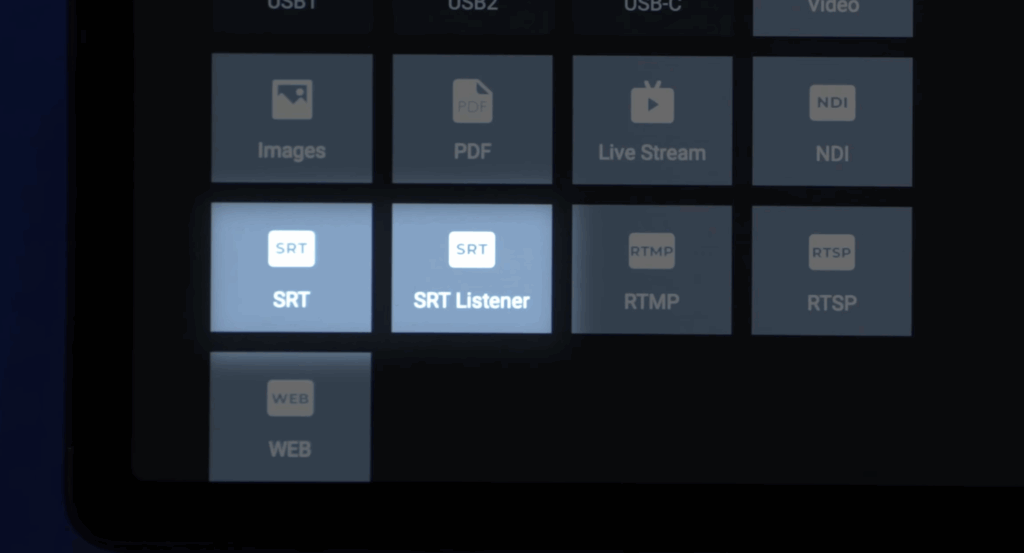
The first “SRT” stands for SRT Caller. When you tap on it, you’ll need to manually enter the SRT Input URL. But if you choose “SRT Listener”, you’ll notice that an SRT Input URL is already automatically generated for you.
Why the difference? Don’t worry — we’ll explain this clearly in the next part of the tutorial.
In short, both YoloBox models support adding SRT video in two separate modes: SRT Caller and SRT Listener. One thing to keep in mind — while the YoloBox does support adding SRT sources in two different modes, you can only add one SRT source at a time. It’s not possible to add two SRT sources simultaneously.
Add a SRT Video from vMix (Suitable for closed-source)
When we talk about bringing SRT video into the YoloBox, it’s also important to understand how the software or device that’s sending the SRT signal is actually outputting it.
Some devices or software that support SRT output will clearly let you choose between Caller, Listener, or Rendezvous modes — like the camera I have here, or vMix. But other platforms don’t make these options quite as obvious. Instead, they require you to manually add certain parameters or codes to the SRT URL — OBS is a typical example of that.
Now let me walk you through the first method of bringing an SRT signal into the YoloBox, using vMix as our example.
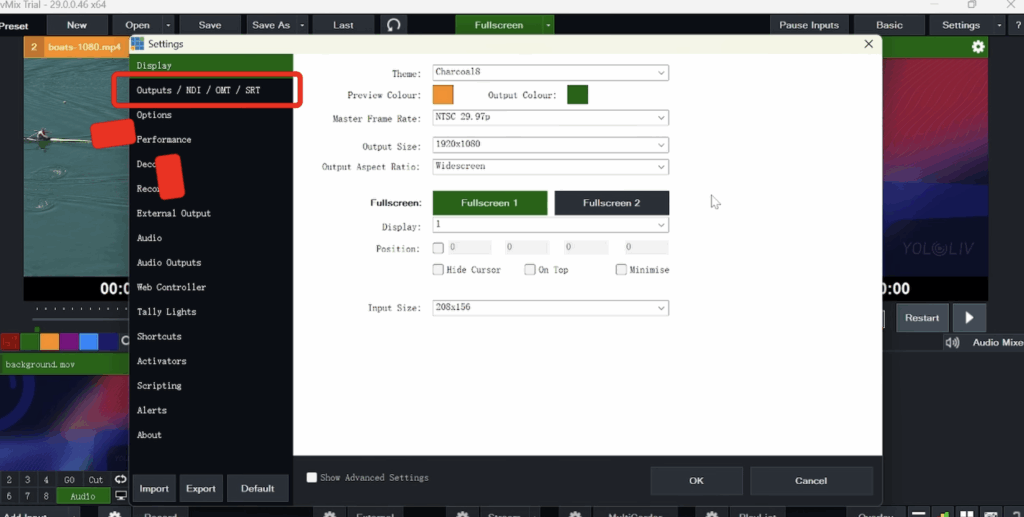
I’ve already opened the vMix settings. From the settings menu, go to Outputs / NDI / SRT, and click the gear icon to configure the first output.
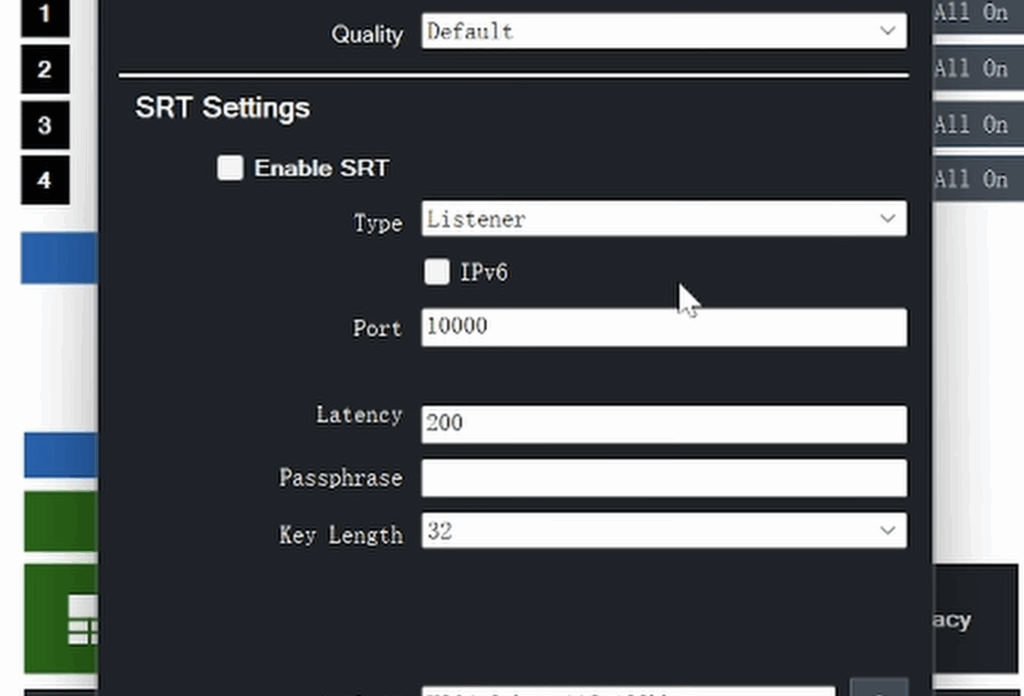
First, check the box that says Enable SRT. You’ll see that vMix gives you three mode options: Caller, Listener, and Rendezvous. My recommendation is to stick with either Caller or Listener. I’ll explain how each one works, step by step.
Using vMix as Caller and YoloBox as Listener
Let’s start with Caller mode. Once you select Caller, all you need to do is fill in the Hostname and Port — you can leave the other settings at their default values. Here, the “Hostname” simply refers to the IP address of the receiving device.
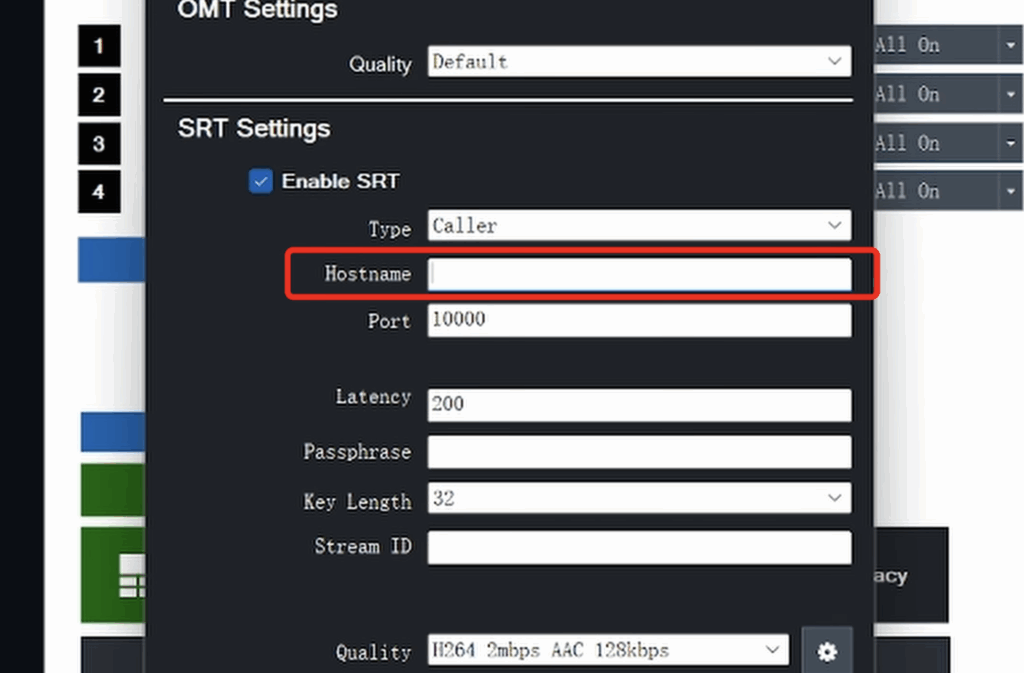
Not sure where to find that? Don’t worry — just go to your YoloBox, open the Video Source menu, and tap on SRT Listener. YoloBox will automatically generate and display its own IP address and port number. Just copy that information over into vMix.
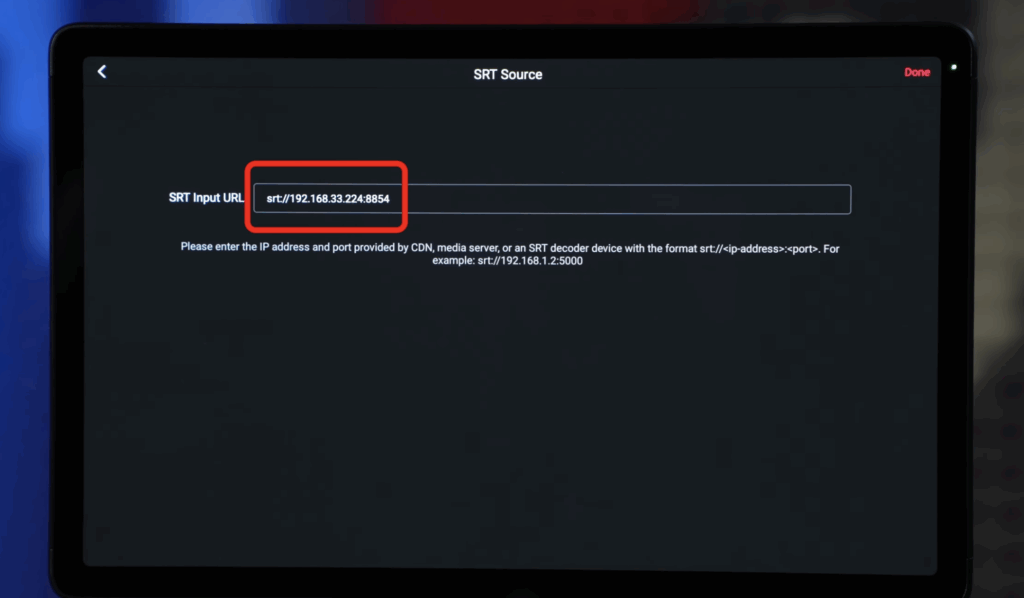
Once that’s filled in, go back to YoloBox and tap Done in the top right corner of the SRT Listener screen. Then on vMix, click OK, and your SRT video signal should now be successfully routed into YoloBox.
Using vMix as Listener and YoloBox as Caller
Now let’s take a look at how to set it up using Listener mode in vMix. As soon as you select Listener, vMix will automatically generate a port number. Take note of that port — you don’t need to do anything else inside vMix. Just leave all other settings as they are, click OK, and start the stream on vMix.
Next, go to your computer’s network settings and find the IP address for the network your computer is connected to. Then go to YoloBox, open the Video Source menu, and this time select SRT. From there, enter the IP address and the port number you just noted from vMix, following the standard SRT URL format. Once that’s done, tap Done in the top right corner, and the SRT video will be successfully received by YoloBox.
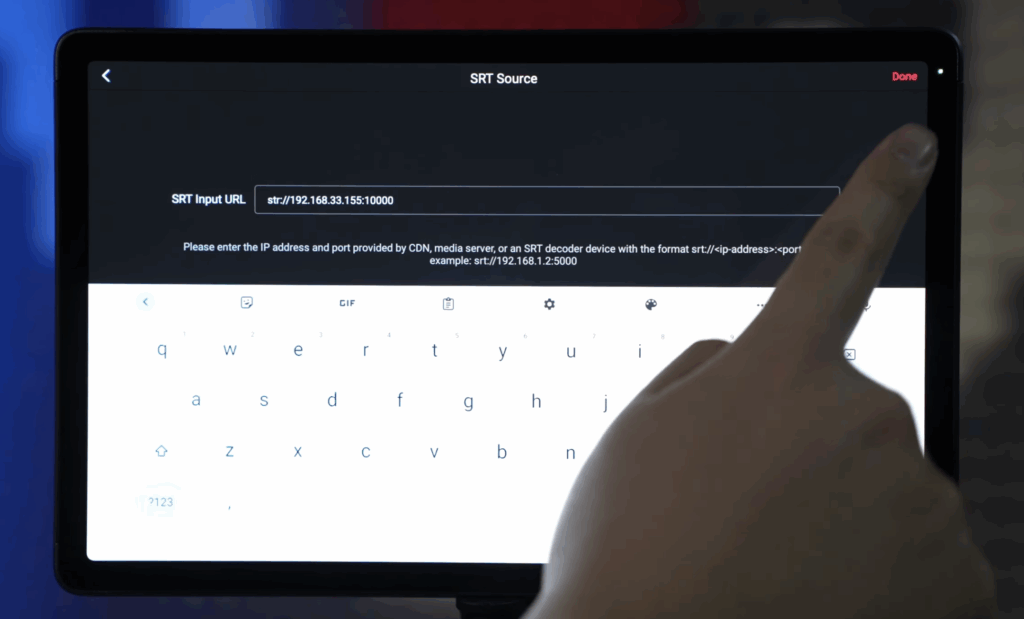
Even though the setup steps might vary slightly depending on the device or software you’re using as the SRT sender, the overall logic is always the same. It all comes down to complying with the SRT protocol — that is, choosing a mode (Caller or Listener), and then making sure the corresponding port and IP address match between sender and receiver.
More specifically, if the sender is in Caller mode, you’ll typically need to input the IP address of the receiver. If the sender is in Listener mode, you’ll instead be entering the IP address of the sender into the receiving device.
One important thing to note here: some hardware or software-based SRT senders — when set to Caller mode — will automatically generate a fixed, unchangeable IP address. In those cases, this default IP often doesn’t match the one automatically generated by YoloBox. And even if you try to manually adjust the IP address on YoloBox to match the sender, the connection might still fail.
So in situations like that, we strongly recommend using Caller mode on YoloBox instead — that way, you’re more likely to get a stable SRT connection and ensure everything works smoothly.
Add a SRT Video from OBS (Suitable for open-source)
Some SRT senders don’t have a very clear setting to choose between “caller” and “listener” modes, but that doesn’t mean they can’t work with SRT. OBS is one of those examples. In this video, I’ll show you how to bring video from OBS into the YoloBox using SRT. There are actually two ways to do it—one where OBS acts as the caller and YoloBox as the listener, and the other where OBS becomes the listener and YoloBox sends the signal as the caller.
Before we begin, make sure all your devices are connected to the same network. That’s really important for SRT to work smoothly.
Using OBS as Caller and YoloBox as Listener
Let’s start with the first method—OBS as the caller, YoloBox as the listener. Before opening OBS, go to your YoloBox and open the Video Source menu. There, tap on SRT Listener to enable it. The YoloBox will automatically generate an SRT input URL—make sure to copy or write that down, because we’ll need it in OBS in just a moment.
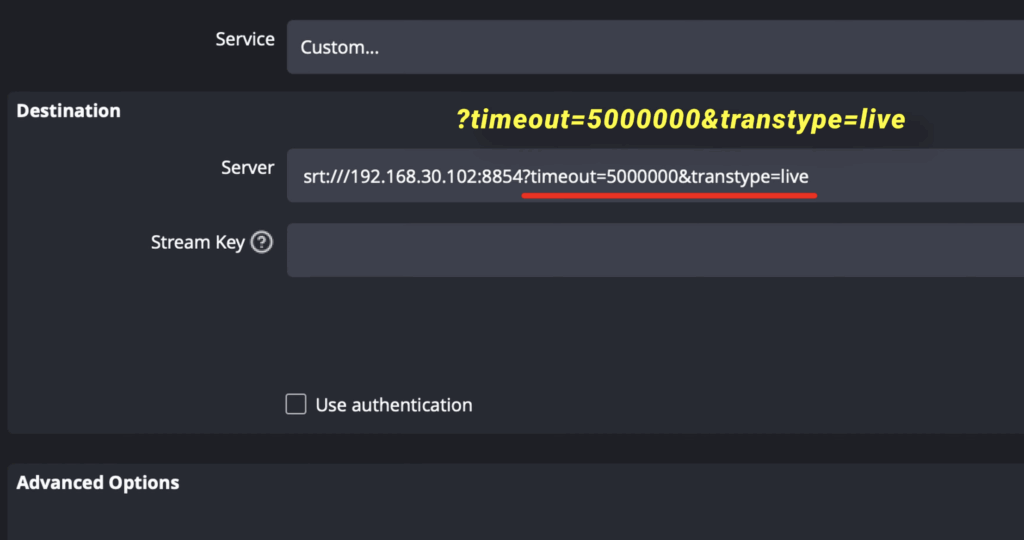
Now open OBS and head into the Settings panel. Click on the “Stream” section, and under “Service,” choose “Custom.” This is where we’re going to paste that URL from the YoloBox. But before we do that, go ahead and delete the stream key at the bottom—that long string of random characters. Then paste in the URL you copied from the YoloBox. Right after that, you need to add this part:
?timeout=5000000&transtype=live
This part is fixed, so just copy it exactly as it is. Once that’s done, hit OK to save the settings.
Now head back to the YoloBox. With the SRT Listener already open, just tap “Done” in the upper-right corner.
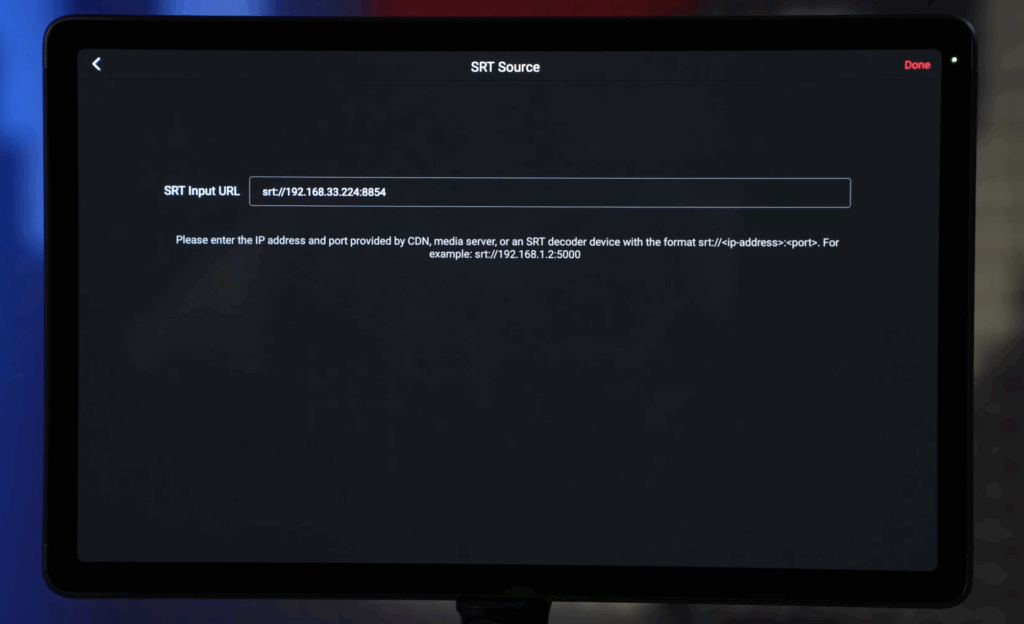
And here’s a really important note: make sure you tap “Done” on the YoloBox before you click “Start Streaming” in OBS. If you start the stream too early, OBS might not be able to detect the right port and could actually crash. So, tap “Done” on YoloBox first, then go back to OBS and hit “Start Streaming.” If everything is set up correctly, you should now see your SRT video feed coming through.
Using OBS as Listener and YoloBox as Caller
Now let’s take a look at the second method—this time, OBS will act as the listener, and YoloBox will send the stream as the caller. Again, open OBS and go into the Settings panel, under the Stream tab. This time, the format of the URL we’ll enter is a little different. You’ll need to type something like this:
srt://<your-IP-address>:<port>?mode=listener&timeout=5000000.
The part I’ve highlighted in fluorescent color is fixed, so you can copy that exactly. As for the IP address, it’s not something you’ll find on the YoloBox—instead, it’s your computer’s local IP address on the network. You can find this in your network settings. And for the port, you can actually choose any number, as long as it’s the same number you’ll enter on the YoloBox later.
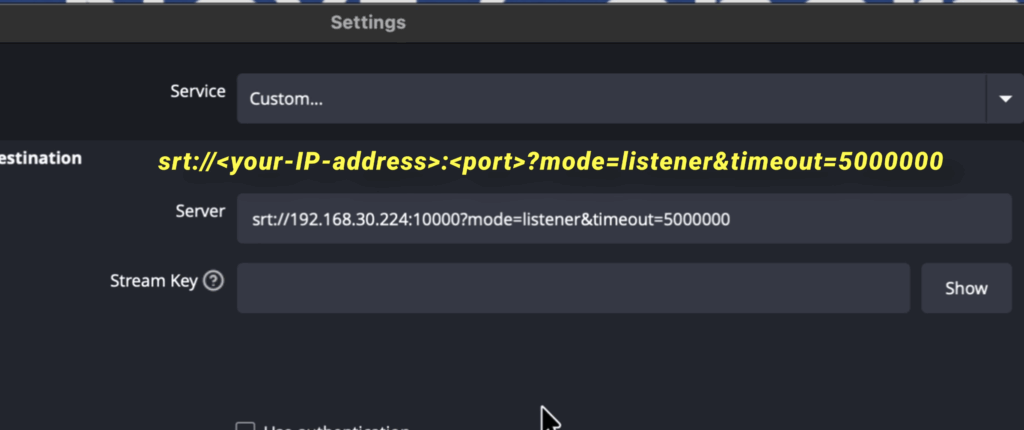
Once you’ve got that URL filled in on OBS, click OK to save it, and then hit “Start Streaming.” Now move to your YoloBox. This time, instead of tapping “SRT Listener,” choose “SRT” from the Video Source menu. In the URL field, just enter the first part of the URL I type into OBS — the part I marked. Then tap “Done” on the YoloBox.
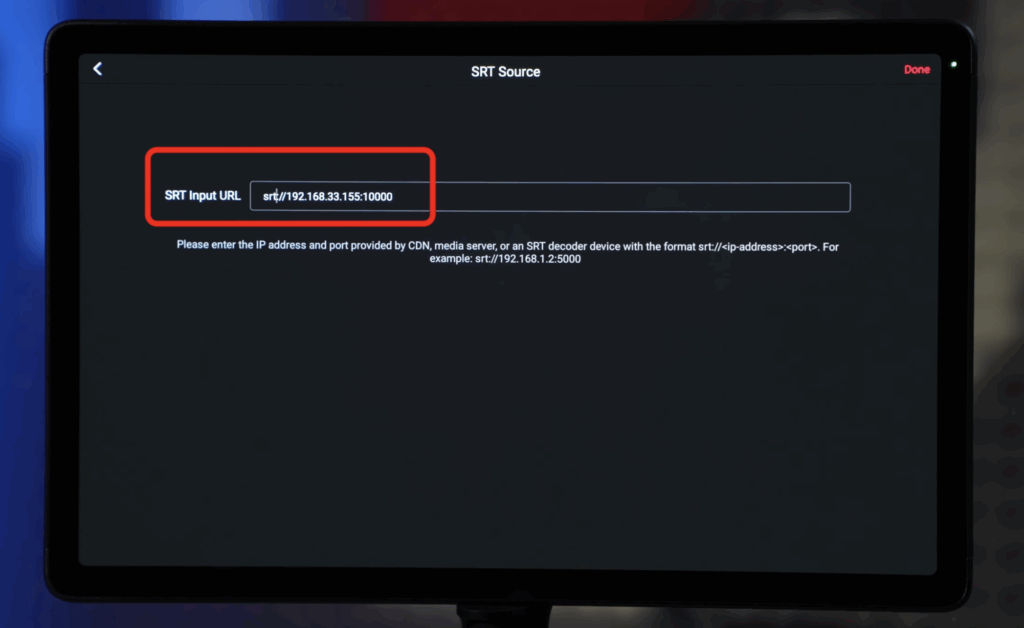
If everything’s connected properly, your video from YoloBox will be sent to OBS through SRT, with OBS now acting as the listener.
So that’s how you can send SRT video from SRT sender to YoloBox using both caller and listener modes. As long as you follow the steps in the right order and make sure the IP address and ports are correctly matched, it should all work smoothly.
Introduction to SRT Output on YoloBox
YoloBox also supports SRT Out streaming, but there’s one thing you should know before setting it up. The configuration is a little different from many other SRT servers. On some devices or software, SRT In and SRT Out are usually located in the same settings page, but on YoloBox, the SRT Out setup is located in the Platforms control panel.
To start, tap the red “+” button in the bottom-right corner, and here you’ll see several streaming options such as RTMP and SRT. If you’d like to learn more about the differences between RTMP and SRT, you can check out one of my previous videos. I’ve included the link in the description below.
After selecting SRT, you’ll see two setup options: Send the Link and Fill in Manually. The Send the Link option allows you to receive a binding link via email and complete the setup on a computer, while Fill in Manually lets you enter the required information directly on the YoloBox. If your SRT server provides a Server URL with a short validity period, for example only 60 seconds, I would recommend using the Send the Link option. For demonstration purposes, though, I’ll choose Fill in Manually.
First, you can set a name for this connection, and then choose SRT as the server type. After that, you’ll need to enter the Server URL. Some third-party software will provide a complete SRT URL, which means you can simply copy and paste it. However, with some open-source SRT servers, you may need to gather the information yourself and manually construct the URL.
Just like when setting up SRT In, the first step is to find the IP address of the network your device is connected to. Then, on the receiving SRT server, make sure the server is set to Listener mode. After that, you can follow this SRT URL format:
srt://<IP address>:<port>?mode=caller&m=publish
In this format, most of the structure stays exactly the same, and you only need to replace the IP address with the one you found on your network. As for the port, you can choose almost any number, but it’s usually recommended to use a larger port number, such as 10000 or 5001.
For example, if my IP address is 0.0.0.0, the URL would look like this:
srt://0.0.0.0:5001?mode=caller&m=publish.
Once you’ve entered the URL, tap Send, then go back to the Platforms control panel, and you’ll see the account you just added. After you start streaming, you should be able to see the SRT signal coming from YoloBox on your SRT server.
75 total views, 75 views today