
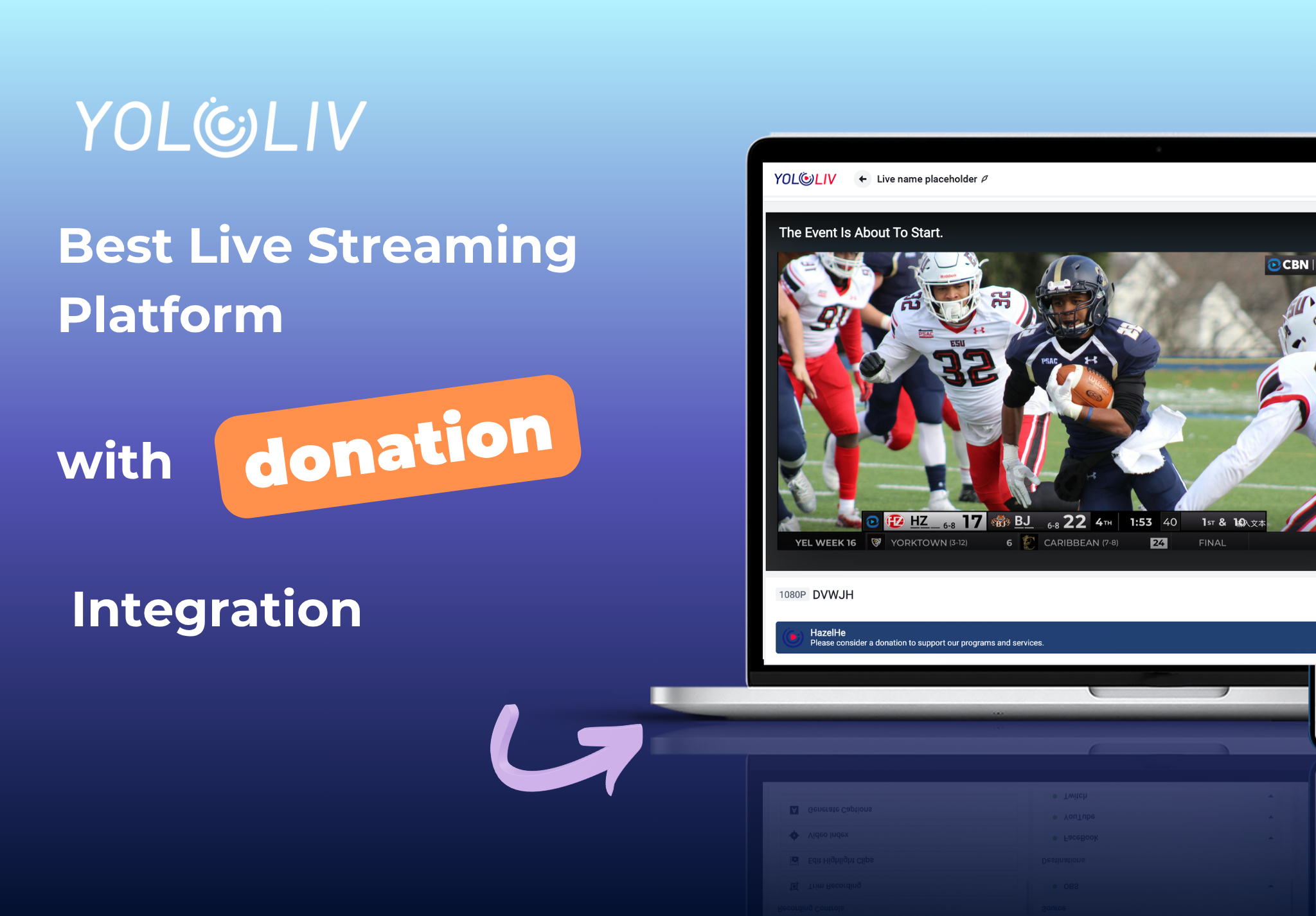
You’ve worked hard to set up your live stream. Your viewers are engaged. The offering moment arrives. Then you scramble to paste a PayPal link into the chat, half your audience misses it, and the moment passes. A live streaming platform with donation integration solves that problem before it starts. Instead of chasing viewers with links, a Donate button lives on the watch page throughout your entire broadcast. This guide covers how it works, which platforms offer it, and how to choose the right one for your church, nonprofit, or creator channel.
Does Adding a Donate Button to Your Live Stream Actually Increase Giving?
Yes. A visible Donate button on the watch page removes the biggest barrier to online giving: friction. When viewers don’t have to search for a payment link, more of them act on the impulse to give. The button is there the whole time, not just when the streamer remembers to post it in chat.
Research from NonprofitPRO shows digital giving has grown year over year across faith-based and nonprofit organizations. One consistent finding: reducing the steps between a viewer’s intention to give and the completed transaction raises the number of donors who follow through. A donation button that’s always visible on the page does exactly that.
There’s also an ownership advantage. When you collect through YouTube Stars or Facebook Fundraisers, those platforms keep a cut of every transaction. With a platform like YoloCast, the button links to your own payment account. You choose the provider. YoloCast charges nothing on donations. Only your payment provider’s standard fee applies.
What Should You Look for in a Live Streaming Platform with Donation Integration?
Look for five things: a Donate button that’s visible on the watch page without any extra steps from the viewer; the ability to use your own payment provider instead of the platform’s; zero platform fees on donations; multistreaming so you can reach YouTube and Facebook at the same time; and donation access starting at an affordable plan tier.
- Visibility on the watch page: The button should be on the page where viewers watch, not buried in a description or shared only in chat.
- Your own payment provider: You should be able to paste any donation link from PayPal, GoFundMe, Stripe, or any other platform you already use.
- No platform donation fee: Some platforms take a cut of every donation. The best ones don’t. YoloCast charges zero platform fees.
- Multistreaming support: If you stream to YouTube and Facebook at the same time, the donation button on your YoloCast watch page still works regardless of which platform carries the video.
- Accessible plan tier: Donation features shouldn’t require a top-tier plan. YoloCast includes it starting at the Exclusive plan ($39/month).
Top Live Streaming Platforms with Donation Integration Compared
| Platform | How Donation Works | Lowest Plan with Donations | Platform Fee on Donations | Multistreaming |
|---|---|---|---|---|
| YoloCast | Donate button on watch page; links to your own payment platform | Exclusive: $39/month | None | Yes (all plans) |
| Dacast | Third-party paywall integration | Starter: $39/month + add-on | Varies | Limited |
| StreamYard | Not included natively | Not available | N/A | Yes |
| Restream | Not included natively | Not available | N/A | Yes |
| YouTube Live | Super Thanks / Memberships (YouTube processes payment) | Free | ~30% | No |
| Facebook Live | Stars / Fundraisers (Facebook processes payment) | Free | Up to 30% | No |
Competitor features and fees change frequently. Check each provider’s current plans before purchasing.
How Does YoloCast Donation Integration Work for Viewers?
When your event goes live on view.yololiv.com, a Donate banner appears below the video player. It shows your custom message and a yellow Donate button. Viewers click it and go directly to the payment link you configured. The transaction happens on your chosen payment platform, not inside YoloCast.
Here’s the full flow from the streamer’s side:
- Generate a donation link: Log in to your payment platform (PayPal, GoFundMe, Stripe, or any service that gives you a shareable link) and copy the URL.
- Paste it into YoloCast: In your YoloCast dashboard, enter the link and write a short message for viewers, such as “Please consider a donation to support our programs and services.”
- Go live: The Donate banner displays automatically for the full duration of the broadcast.
- Viewer clicks Donate: They’re taken to your payment page. The transaction is completed there. YoloCast handles none of the payment processing and takes none of the funds.
This approach gives you full flexibility. You’re not locked into one payment provider. You can use an existing account you already have. And if you want to switch providers, you just update the link.
Who Uses Live Streaming Platforms with Donation Integration?
Churches and Religious Organizations
For churches, the offering moment is specific and intentional. Remote viewers need to be able to give at that exact moment. A live streaming platform with donation integration puts the Donate button on the watch page for the whole service. Viewers don’t need to dig for a link. According to Nonprofit Tech for Good, 63% of donors worldwide prefer to give online. A visible button during the stream captures that preference at the right moment.
Nonprofit Fundraising Events
Nonprofits hosting virtual galas, charity auctions, or campaigns need donations to come in during the broadcast, not after. YoloCast’s Donate banner stays visible throughout the event. Viewers who feel moved to give at the emotional peak of your presentation can act immediately, without switching apps or searching for a link.
Independent Creators and Educators
Creators who run community-supported content can use the donation button as a flexible alternative to subscriptions. Viewers decide what a session is worth and contribute accordingly. You keep full control over your payment provider and payout terms.
How Is YoloCast Different from YouTube Stars or Facebook Fundraisers?
YouTube and Facebook process donations themselves and keep a percentage. YoloCast doesn’t process payments at all. It shows a Donate button that links to your own payment account. You choose the provider, you keep what your provider pays out, and you’re not subject to YouTube’s or Facebook’s payment terms.
- Platform fee: YouTube keeps ~30% of Super Thanks revenue. Facebook takes a cut of Stars. YoloCast takes nothing.
- Works across platforms: YouTube Stars only work on YouTube. Facebook Fundraisers only work on Facebook. YoloCast’s Donate button is on your watch page and works no matter where your viewers found the stream.
- Your payment provider: With YouTube and Facebook, you accept their payment rules. With YoloCast, you bring your own PayPal, GoFundMe, or Stripe link.
How Do You Set Up Donation Streaming with YoloCast?
It takes three steps. Pick a plan that includes Donations (Exclusive at $39/month or higher). Generate a donation link from your payment platform of choice. Paste the link and a short message into your YoloCast event settings. When you go live, the Donate banner appears automatically on the watch page.
Step 1: Choose a Plan with Donations
The Exclusive plan ($39/month, for YoloLiv hardware owners), Professional plan ($69/month), and Business plan ($99/month) all include donation integration. Annual billing saves up to 34%. A 14-day free trial is available with no credit card required.
Step 2: Get Your Donation Link
Log in to your payment platform and copy a shareable donation link. It can be a PayPal.me link, a GoFundMe campaign URL, a Stripe payment link, or any URL that takes someone to a payment page. YoloCast works with any link.
Step 3: Add It to Your YoloCast Event
Open your event settings in the YoloCast dashboard. Paste the link. Write a short message (1-2 sentences) explaining what the donation supports. When your stream starts, the Donate banner goes live on the watch page automatically.
Best Practices for Getting More Donations During Your Live Stream
Say It Out Loud, More Than Once
The button is visible, but viewers still need a prompt. Tell your audience the Donate button is there at the start of the stream. Mention it again at the natural giving moment (during an offering, at a fundraising milestone, or at the close). Research from Nonprofit Tech for Good identifies verbal calls to action as the biggest single driver of online giving conversion.
Make Your Donation Message Specific
“Support this Sunday’s building fund” converts better than “Please donate.” Tell viewers exactly what their gift does. A clear purpose reduces hesitation and raises average gift amounts.
Acknowledge Donors Live
When a donation comes in, say thank you on air. “We just received a gift from the Johnson family, thank you!” This creates social proof. Other viewers see giving as something people around them do, and that nudge is often what converts hesitation into action.
YoloCast Pricing for Donation Streaming
- Starter ($19/month): Multistreaming, Backup Stream, Overlay Lab. Does not include Donations.
- Exclusive ($39/month): For existing YoloLiv hardware owners. Includes Donations.
- Professional ($69/month): Includes Donations, Simulated Live, video embedding on your website, and Highlight Clipping.
- Business ($99/month): Includes everything in Professional, plus 60fps, Ardent Streaming Protocol (ASP), AI Live Subtitles, YoloCut editor, and 24/7 loop broadcasting.
All plans include a 14-day free trial with no credit card required and 100GB of free bandwidth. See full details at yololiv.com/yolocast-overview.
Start Collecting Donations on Your Next Live Stream
A live streaming platform with donation integration makes giving as easy as watching. Your viewers don’t have to leave the page, search for a link, or wait for you to post something in chat. The button is there for the whole broadcast.
YoloCast gives you that button with no platform fee, your choice of payment provider, and multistreaming built into every plan. Churches, nonprofits, and creators across 19 verticals use it to run professional live events without a complicated tech stack.
Frequently Asked Questions
49 total views, 49 views today

Betty,As a Customer Success Specialist at YoloLiv, she is passionate about helping users understand YoloCast’s features and resolve day-to-day usage challenges. In addition to hands-on support, she creates practical articles that share tips, troubleshooting guidance, and best practices to help users get more value from YoloCast.
