
Mac users have unique needs when it comes to external webcams. macOS handles camera permissions differently from Windows. Apple Silicon Macs have specific USB bandwidth considerations. And FaceTime, alongside Zoom and OBS, all need separate configuration.
The YoloCam S3 works beautifully on Mac — but knowing the right setup steps saves you time and frustration. This guide covers everything: connecting the S3, configuring macOS camera permissions, and getting the best image in every major app.
Why Mac Users Choose an External Webcam
Apple’s built-in webcams have improved significantly in recent years. However, even the latest MacBook Pro camera has limitations that the YoloCam S3 solves directly.
Resolution. Built-in Mac webcams top out at 1080p. The S3 delivers 4K 30fps — meaningful for content creation, video calls, and recorded tutorials.
Sensor size. Apple’s internal cameras use small sensors optimized for thin form factors. The S3’s 1/1.3-inch sensor captures dramatically more light. In dim rooms or mixed-lighting environments, the difference is visible immediately.
Autofocus. Mac built-in cameras use basic autofocus systems. The S3’s phase-detection autofocus tracks your movements instantly and stays locked throughout long sessions.
Flexibility. An external webcam can be repositioned independently from your screen. You can mount it at eye level on a monitor arm while keeping your laptop at a comfortable typing height — a setup that improves both ergonomics and on-camera presence.
Compatibility: macOS and Apple Silicon
The YoloCam S3 is fully compatible with macOS Ventura, Sonoma, and later. It requires no drivers or additional software on Mac. macOS recognizes it natively as a USB Video Class (UVC) device the moment you plug it in.
It works correctly on both Intel-based Macs and Apple Silicon Macs (M1, M2, M3, M4 series). USB-C is the native connection type for Apple Silicon MacBooks, so the S3 connects directly without adapters.
For MacBook Air models with only two USB-C ports, plug the S3 into one port and your charger into the other. Use a USB 3.0 port (not USB 2.0) for full 4K output — all current MacBook USB-C ports support USB 3.0 speeds.
Initial Setup on Mac
Step 1: Connect the Camera
Plug the S3’s USB-C cable directly into your Mac. macOS detects it automatically within a few seconds. No installation prompt appears — this is normal and correct behavior.
Step 2: Grant Camera Permission
The first time an app tries to access the S3, macOS will ask for permission. Click OK to allow access. If you accidentally deny permission, go to:
System Settings → Privacy & Security → Camera
Find the relevant app (Zoom, FaceTime, OBS, etc.) in the list and enable camera access. Without this step, the app cannot use any external camera.
Step 3: Verify in System Information
To confirm the S3 is recognized:
- Hold Option and click the Apple menu → System Information
- Select USB in the sidebar
- Look for YoloCam S3 in the device list
If the camera appears here, macOS has recognized it fully. Any app-level issues are permission-related, not hardware-related.
Setting Up the S3 in Zoom on Mac
- Open Zoom → Preferences (Cmd + ,)
- Click Video
- Under Camera, select YoloCam S3
- Check Enable HD for 1080p; if you have Zoom Pro or higher, check Enable 4K
- Uncheck Adjust for low light — the S3 handles this natively and the automatic adjustment degrades quality
For audio, navigate to Audio in Preferences and select other mics like Rode as your microphone. This is because YoloCam S3 doesn’t have a built-in mic.
For a detailed Zoom settings walkthrough, see our Zoom and Teams setup guide.
Setting Up the S3 in FaceTime on Mac
FaceTime automatically detects all connected cameras.
- Open FaceTime
- In the menu bar, click Video
- Select YoloCam S3 from the camera list
- FaceTime immediately switches to the S3’s feed
FaceTime on macOS Sonoma and later supports 4K camera input. When you select the S3, FaceTime displays noticeably sharper, more detailed video than the built-in camera — especially in rooms with less-than-ideal lighting.
Setting Up the S3 in OBS Studio on Mac
OBS Studio is the standard tool for streaming and recording on Mac. The S3 integrates cleanly with no additional configuration.
- Open OBS Studio
- In the Sources panel, click the + button → Video Capture Device
- Name the source (e.g., “YoloCam S3”) and click OK
- Under Device, select YoloCam S3
- Set Resolution to 3840×2160 for 4K or 1920×1080 for 1080p 60fps
- Set Frame Rate to match your resolution choice
- Click OK
The S3 preview appears immediately in your OBS canvas. For a complete OBS setup including scene configuration, overlays, and streaming optimization, see our OBS setup guide.
Setting Up in QuickTime Player for Screen Recording
Mac users frequently use QuickTime for screen recordings with facecam overlays. The S3 works natively with QuickTime.
- Open QuickTime Player
- Click File → New Movie Recording
- Click the arrow next to the record button
- Select YoloCam S3 under Camera
- Select your mics under Microphone
- Set Quality to Maximum
This setup is ideal for tutorial recordings, software demos, and educational content where you want a facecam alongside your screen.
Recommended Camera Settings for Mac
The S3 does not require a companion app on Mac for basic use — macOS manages camera settings natively. However, if you want fine-grained control over exposure, white balance, and color, use a third-party camera utility such as Cascable or Reincubate Camo.
For most Mac users, the S3’s automatic settings produce excellent results without manual adjustment. The autofocus, exposure, and white balance all adapt correctly to typical Mac workstation environments.
Performance on MacBook Air vs MacBook Pro
MacBook Air — The S3 runs smoothly on MacBook Air models. Air models have fanless cooling, so thermal performance depends on ambient temperature. The camera itself generates no heat load on the Mac. USB-C bandwidth on all current Air models supports full 4K output from the S3.
MacBook Pro — Ideal pairing. Pro models have more USB bandwidth headroom, active cooling, and higher-performance image signal processors. The S3 reaches its full potential on a MacBook Pro.
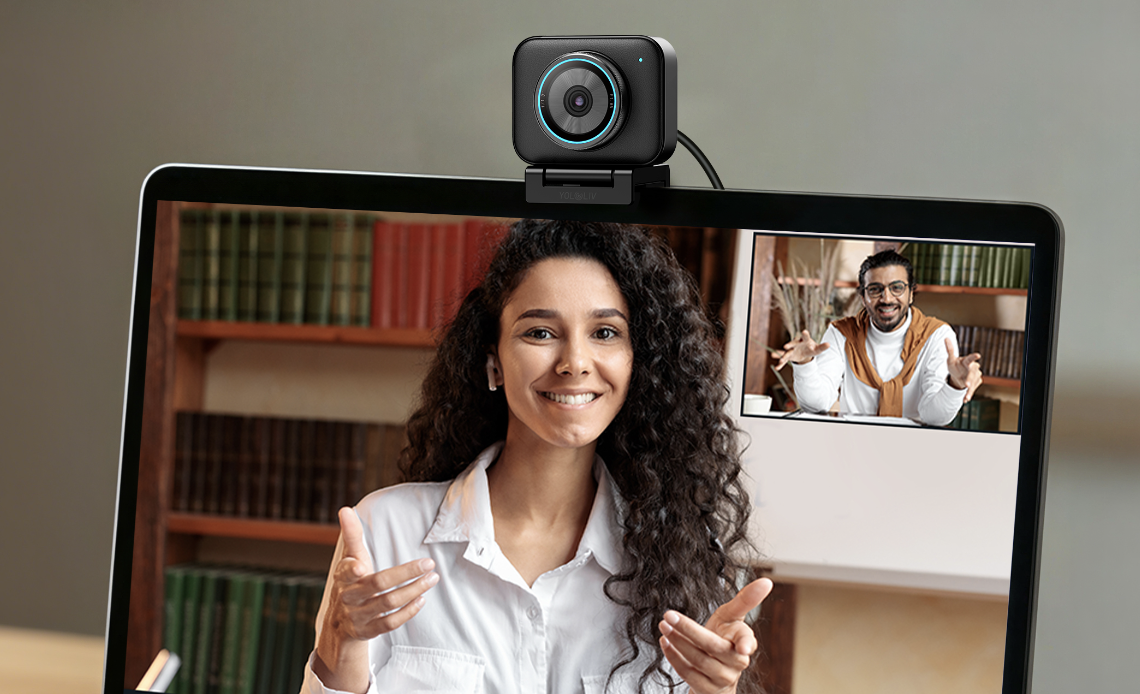
iMac — The iMac’s rear USB-C ports all support USB 3.0 speeds. Position the S3 on the top of the iMac’s display bezel using the included mount or a small clip-on adapter. This places the camera at natural eye level for a comfortable, professional framing.
Troubleshooting Common Mac Issues
Camera not appearing in app dropdown:
Go to System Settings → Privacy & Security → Camera and enable access for the specific app. Restart the app after granting permission.
Camera appears but shows black screen:
Another app may be using the camera exclusively. Quit all other apps that access the camera, then relaunch your target app.
Low resolution output despite 4K selection:
Confirm the S3 is connected to a USB 3.0 port. USB 2.0 bandwidth limits the camera to lower resolutions. Using a USB hub? Make sure the hub is USB 3.0 rated.
Audio not working in FaceTime or Zoom:
Check System Settings → Privacy & Security → Microphone and confirm the app has microphone access.
Final Thoughts
The YoloCam S3 is one of the most Mac-friendly external webcams available in 2026. Plug-and-play compatibility with Apple Silicon, native macOS UVC support, and no-driver operation make setup fast and friction-free.
Moreover, the image quality upgrade over Mac’s built-in camera is significant. Sharper 4K video, better low-light performance, and responsive PDAF autofocus all contribute to a noticeably more professional on-camera presence — whether you are on Zoom calls, FaceTiming with family, streaming on Twitch, or recording tutorials in QuickTime.
For Mac users who want the best external webcam experience, the YoloCam S3 is the clear choice.
63 total views, 63 views today

Meredith, the Marketing Manager at YoloLiv. After getting her bachelor’s degree, she explores her whole passion for YoloBox and Pro. Also, she contributed blog posts on how to enhance live streaming experiences, how to get started with live streaming, and many more.
